

Can a USB-C Car Charger Charge a Laptop? 7 Checks
Affiliate disclosure: As an Amazon Associate, MultiChargers earns from qualifying purchases. Links may earn us a commission at no extra cost to you. Confirm the exact model, package and seller before buying.
Check the charging path before you buy.
A suitable USB-C car adapter can be useful on the road. Match the laptop, port, cable and vehicle outlet first.
Compare Anker Nano car chargerQuick answer
Can a USB-C car charger charge a laptop? Yes, when the laptop accepts USB-C Power Delivery, the selected charger port supplies the required power profile, the cable supports it, and the vehicle outlet can safely supply the adapter. A USB-C-shaped socket or a large combined wattage label alone does not establish compatibility. Some laptops may charge slowly, lose battery under load or reject an unsuitable source.
Already have a suitable port?
Keep a documented built-in USB-C PD port if it meets the laptop’s needs. An adapter may be unnecessary.
Laptop plus larger accessory
Compare the Anker model’s 100W C1 and 45W C2 ceilings after checking the vehicle outlet.
Compare AnkerLaptop plus phone
Compare UGREEN’s 100W and 30W USB-C port ceilings; inspect the shared-output chart.
Compare UGREENWhat this guide can and cannot confirm
This is a compatibility guide based on manufacturer documentation, not a hands-on performance test. We have not measured these adapters in a vehicle or ranked their temperatures, charging times or durability. Product examples show how to read specifications. They are not guarantees that every laptop or vehicle will support the same result.
Your vehicle manual and laptop support documents remain the deciding references. Different model years, optional equipment and individual USB ports can change what is available. A generic product compatibility list cannot establish the limit of the outlet in your specific car. Make that check before choosing an adapter, especially when a laptop and phone will charge together.
1. Confirm that your laptop supports USB-C charging
Look up the exact laptop model and its charging instructions. A USB-C connector can carry different functions, and its shape does not promise that the laptop accepts power through it. The documentation should identify the supported charging input and any required adapter specification. Use that information rather than assuming that every visible USB-C port behaves the same way.
If the laptop has several USB-C ports, check which ones accept charging. Start with the port recommended in the manual. A connection that works for a storage drive does not prove the same port is a supported charging input. Similarly, an older laptop with a barrel connector may need its original power system rather than a generic USB-C conversion lead.
Avoid buying an unverified USB-C-to-barrel adapter simply because the plug appears to fit. Voltage, polarity, identification and laptop requirements can differ. If the manufacturer does not document a suitable charging path, ask its support team for a compatible solution. A higher-watt car adapter cannot correct a laptop input that was never designed for USB-C charging.
2. Read the laptop’s power requirement, not just its battery size
The supplied wall adapter provides a useful starting reference, but confirm the laptop manufacturer’s supported USB-C charging guidance too. A laptop may have different capabilities through its main power connector and USB-C. It may also reserve its fastest charging behavior or full performance for a particular power source. Do not treat battery capacity in watt-hours as a charger wattage requirement.
A lower-power source can behave differently across laptops. Some accept it with a slow-charger warning; others may not charge as expected. Dell’s support guidance, for example, explains that an undersized USB-C source can lead to slow charging or battery drain during use. That does not establish a universal minimum for every laptop. Use the instructions for your exact model.
Separate charging while asleep from charging during demanding work. A source that replenishes the battery during a break may not keep up with the laptop’s operating demand. If battery percentage falls while connected, the connection is not necessarily completely inactive. It may be supplying less energy than the computer consumes. Compare the supported input and the actual workload before replacing several accessories.
3. Check the vehicle outlet and adapter input requirements
A plug-in car charger draws power from the vehicle’s accessory outlet. The vehicle outlet is part of the charging system, with its own documented limit. Read the outlet label and the correct owner’s manual. Do not assume that all outlets in the car share a rating, or that all cars provide the same allowance.
Output watts on a USB charger are not identical to the power it draws from the vehicle. Conversion uses some energy, so input requirements matter. A USB adapter with a large combined output claim does not raise the vehicle’s limit. Avoid planning a setup right at an outlet ceiling using output arithmetic alone. Follow both manufacturers’ instructions for the intended configuration.
Some vehicles share a circuit or combined allowance between outlets. Others switch a socket off with the ignition or apply their own battery protection. These details are model-specific. Ford owner guidance illustrates that outlet capacity and shutdown behavior can be explicitly defined; the figures in one Ford manual should not be copied to a different vehicle. Read your own manual before treating an outlet as a laptop supply.
Do not install a larger fuse, modify wiring or add a splitter to bypass a stated limit. A fuse is not a permission label for a higher load. If the correct outlet rating or adapter input specification is unclear, get clarification from the manufacturer. Choose a supported lower-demand arrangement rather than relying on an optimistic headline wattage.
4. Use the correct USB-C port on the car charger
Multi-port car chargers often give their USB-C ports different capabilities. Assign the laptop to the documented laptop-capable port first, then plan the phone or other accessory. Read the printed labels or port diagram before connecting. The most accessible socket is not automatically the strongest one, and two identical connector shapes can have different output limits.
Also check the supported voltage and current profiles. Watts summarize power, but the laptop and charger still need a mutually supported charging arrangement. A protocol logo or combined maximum should not replace that check. If a particular laptop fast-charge feature matters, confirm its complete adapter and cable requirements rather than assuming that a nominally larger charger must support it.
Our multi-port charger guide explains why total output and individual-port output answer different questions. The same distinction applies inside a car. Write down the port you intend to use, not just the adapter’s overall advertised number. This makes comparisons between models much more useful.
5. Check the cable and route before the trip
Use a USB-C cable documented for the intended charging capability. A cable can limit the available charging path even when the adapter and laptop are otherwise suitable. Do not infer capability from braided covering, connector color or thickness. Inspect for damaged insulation, loose plugs or bent connectors before using a lead in a vehicle.
For a charging path above 60W, choose an appropriately rated 5A electronically marked cable that supports the required power range. A 240W-rated lead can provide capability headroom, but it cannot make a 100W port deliver 240W. It also does not establish high-speed data capability. Our laptop charging cable guide separates those specifications.
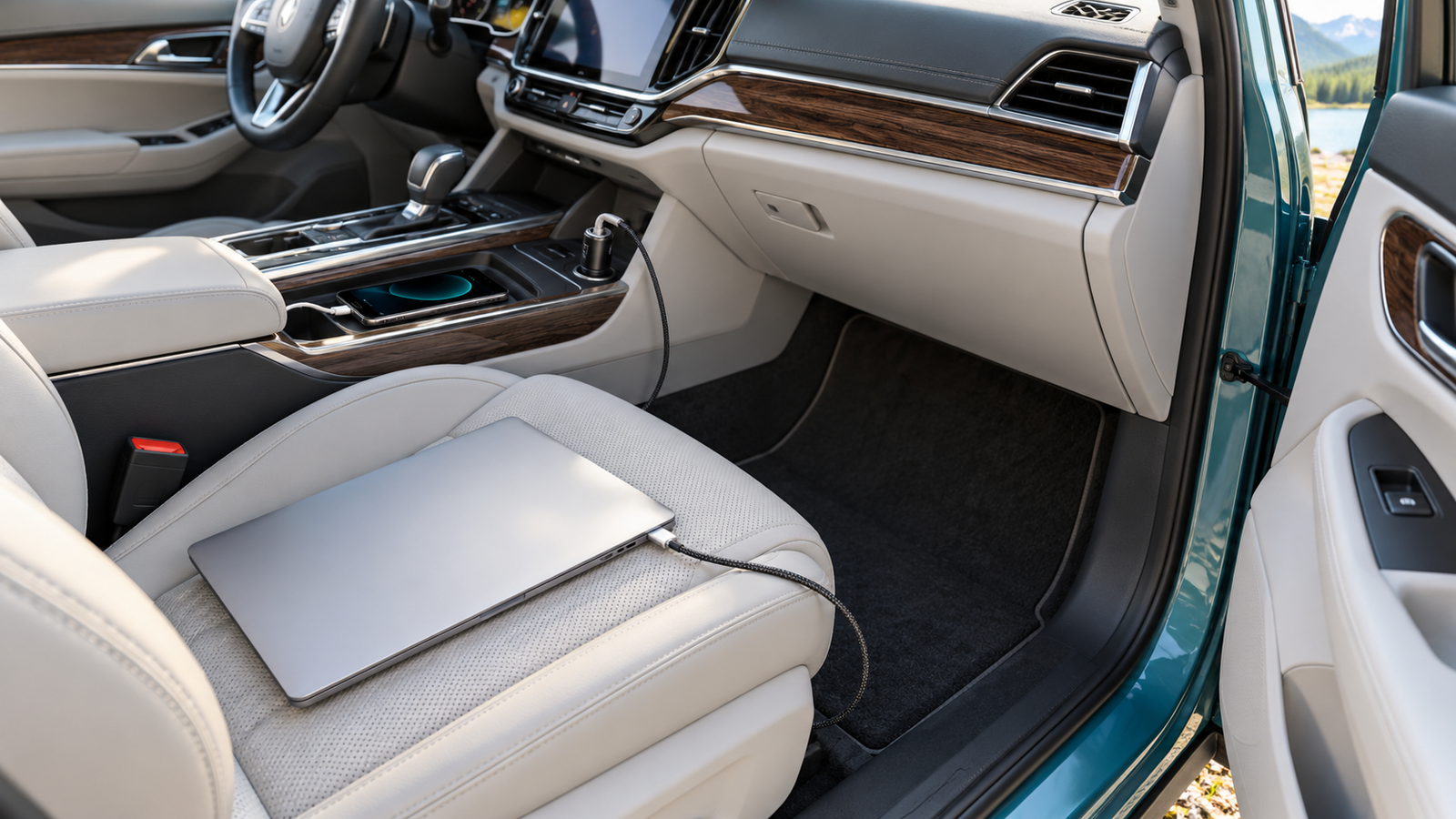
Measure the practical cable route while parked. Keep leads clear of pedals, steering, gear controls and seat adjustment mechanisms. Avoid a tight cable pulling against the laptop connector or the adapter. Set everything up before driving and secure equipment appropriately. The illustrations in this guide show a parked setup; they are not instructions to operate a laptop while driving.
6. Recheck output when a phone is connected
A second device can change the available port allocation on some multi-port chargers. Consult the diagram for the exact occupied-port combination. Do not add independent maximum ratings and assume they are all available simultaneously. A phone’s presence may be insignificant in one supported arrangement and important in another, depending on the model’s documented design.
For example, a charger described as 130W total is not a 130W single-port laptop adapter. Likewise, a 167.5W total does not mean a laptop receives 167.5W. The product examples below both identify a USB-C port with a 100W ceiling. The laptop’s accepted power can be lower still because its own input capability and the cable remain part of the system.
Try the laptop alone first, then add the phone using the intended accessory port. Note whether a warning appears or charging repeatedly disconnects. Some chargers renegotiate when connections change, but persistent interruptions deserve investigation. Avoid treating a car adapter as an uninterrupted power source for critical equipment. Review the allocation chart and simplify the connection before deciding that the laptop itself is faulty.
7. Compare charging behavior under a realistic workload
Check the laptop’s charging indication and battery trend during a representative parked session. A charging symbol alone does not prove the battery is gaining energy quickly enough for your use. Compare light work with a more demanding task if both are part of your routine. Do not promise yourself a particular percentage gain from a charger’s maximum rating.
Change one variable at a time if the result is poor: laptop port, cable, occupied charger ports or workload. Keep a known working wall charger as a reference for the laptop. If a vehicle adapter only fails in one socket, consult the vehicle guidance and have the outlet checked as appropriate. Do not repeatedly force a loose plug into a damaged socket.
Stop using damaged accessories or a setup showing smoke, melting, a burning smell or repeated abnormal shutdowns. Follow the device and vehicle instructions for temperature and placement. Keep electronics away from direct heat and do not leave them unattended in a hot parked car. Those checks matter more than squeezing the highest possible output from a crowded console.
Two car chargers to compare after the compatibility checks
The following are documentation-based examples, not measured best-in-class awards. Check the exact listing variant and current manual before buying. Neither adapter replaces the vehicle outlet check. We do not quote a fixed price, stock status or promised charging time, and we do not claim that a larger combined rating will improve every laptop’s charging speed.
| Model | Documented ceilings | Useful comparison | Check first |
|---|---|---|---|
| Anker Nano A2737 | 167.5W total; C1 up to 100W; C2 up to 45W; USB-A up to 22.5W | Laptop plus a higher-power second USB-C device | Vehicle outlet, input requirements and supported configuration |
| UGREEN 130W 3-port | 130W total; C2 up to 100W; C1 up to 30W; USB-A up to 22.5W individually | Laptop plus phone with two USB-C ports | Shared-output chart; do not add all individual maxima |

Anker Nano Car Charger 167.5W A2737
Two USB-C ports and one USB-A port. Compare C1 for the laptop; its 100W ceiling is separate from the combined 167.5W figure.
Check exact model on AmazonVerify port labels, vehicle compatibility, package contents and seller.
Anker’s stated second USB-C ceiling is higher than the UGREEN example’s 30W ceiling. That is a specification distinction, not a speed guarantee. Consider it if the second device actually supports and benefits from that power. If it does not, the difference may not improve your routine. Confirm the complete occupied-port arrangement and vehicle supply requirements.

UGREEN 130W USB-C Car Charger
Two USB-C ports and one USB-A port. The manufacturer identifies C2 for up to 100W and C1 for up to 30W; the total remains 130W.
Check exact model on AmazonVerify port labels, vehicle compatibility, package contents and seller.
UGREEN’s product information lists a 100W USB-C cable in the referenced package. Check the selected Amazon bundle instead of assuming every regional package includes the same lead. The individual USB-A maximum is not extra power that can simply be added above the stated total. Read the port-sharing diagram if you plan to use all three connections.
Do you need an adapter, a power bank or a different plan?
A built-in vehicle USB-C port may already be sufficient if its documented output matches the laptop. Check that before buying another accessory. For travel away from an available vehicle outlet, a compatible laptop power bank solves a different problem: it stores energy. Our MacBook Air power bank guide provides examples for that specific laptop family.
A car charger has no reserve battery. It stops supplying useful charging when its vehicle source turns off. Do not assume it can replenish a laptop indefinitely with the vehicle parked and switched off. Follow the vehicle’s instructions for accessory power use and battery protection. Do not run an engine in an enclosed area to keep a laptop charging.
An inverter and the original laptop adapter may be a different supported route in some vehicles, but that adds its own input limits and instructions. It is not automatically the better choice, and an inverter cannot raise the accessory socket’s capacity. If your laptop requires more than the available supported setup can provide, plan charging before travel or use an approved alternative.
A practical pre-trip checklist
Record the laptop model, supported charging input, charger port, cable rating and vehicle outlet limit. Confirm that the intended adapter supports the vehicle’s electrical system. Test the laptop alone and then the complete planned combination while parked. Keep the product manual accessible so you can identify the correct port without guessing during the trip.
Secure devices and route cables before moving. Keep a known working cable available, and disconnect equipment according to vehicle and accessory instructions when finished. If the setup works for slow replenishment but not sustained work, make that limitation part of the travel plan. A realistic charging arrangement is more useful than a larger number on the box.
Frequently asked questions
Can any USB-C car port charge a laptop?
No. Check whether the vehicle port provides the USB Power Delivery output the laptop requires. Connector shape alone is insufficient.
Will a 167.5W car charger send 167.5W to my laptop?
No. That is a combined rating. The Anker example has a 100W C1 ceiling, and the laptop may accept less.
Can I charge a laptop and phone together?
Potentially, if the documented occupied-port arrangement and vehicle outlet support both. Assign the laptop to the correct port first.
Why is the battery falling while the charger is connected?
The laptop may consume more power than the supported charging path supplies. Check the source, cable, selected port and workload.
Can I leave a laptop charging with the engine off?
Follow your vehicle manual. Outlet behavior and battery protection vary. Do not assume the adapter provides stored energy or prevents vehicle battery drain.
Sources and editorial notes
Manufacturer documentation checked October 15, 2026: Anker A2737 product specifications; UGREEN port-output information; UGREEN product and package details; Dell guidance on insufficient USB-C power. Vehicle limits must come from your own model’s manual, not a generic charger listing.





One Comment