Why Is My Qi2 Charger So Slow? 7 Checks Before You Replace It
If your Qi2 charger is slow, plug it into the recommended wall adapter, remove the phone case and any wallet, and retest with the phone cool and the screen off. If charging still feels slow, check the maximum wireless wattage your exact iPhone and charger support together.
A phone can snap onto a magnetic charger and show the charging icon even when the setup delivers less power than you expect. Start with the symptom below, then change one thing at a time so you know what made a difference.
| What you notice | What to check first |
|---|---|
| It charges reliably, but you expected more speed | Look up your phone’s supported wireless charging rate and the exact charger’s certification. |
| It slows when you plug in another device | Try the dock’s recommended adapter in a wall outlet, without other devices sharing the adapter. |
| It works without your case | Check whether the case, wallet, or grip is preventing the phone from sitting flush. |
| It starts normally and then slows or pauses | Open Settings → Battery and look for a temperature message or a charging limit. |
| The charging icon comes and goes | Reseat the phone and check for a loose cable or poor contact with the pad. |
7 checks for a slow Qi2 charger
1. Match the phone and charger ratings
Check your exact iPhone model, the charger’s model number, and the manufacturer’s compatibility notes. The original Qi2 standard supports up to 15W, and Qi2 25W raises the peak to 25W for compatible combinations. A charger’s 25W label is its ceiling. Your phone’s supported rate and the conditions during charging determine how much it can use. If the listing only says “magnetic,” look up the model in the Wireless Power Consortium’s certification directory.
2. Check the wall adapter and cable
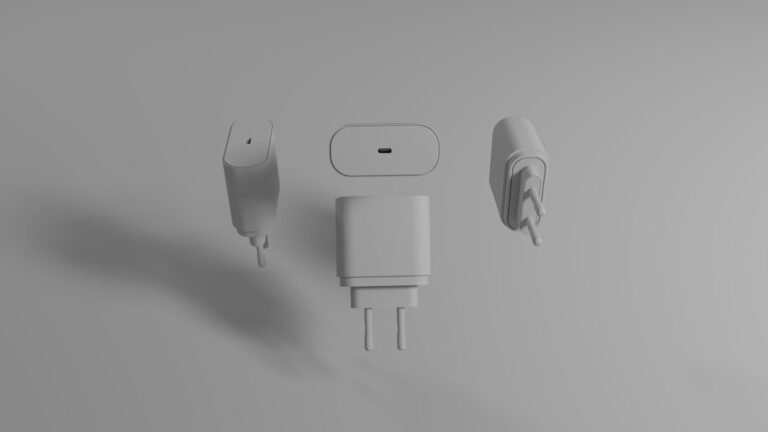
Use the adapter and cable that came with the charger, or follow its manual for a replacement. If you use a multiport USB-C wall adapter, check the output of the specific port with your other devices plugged in. The total wattage printed on the adapter can be higher than what that port supplies when shared. Try the dock by itself to isolate the power source.
3. Remove the case and accessories
Take off any wallet, grip, or thick case. Place the bare phone directly on the charging pad and check that it sits flat. If it works better bare, reattach one item at a time. A prominent camera lip can keep some phone-and-case combinations from sitting flush against a flat charger.
4. Test with a cool phone and the screen off
Move the charger out of direct sun and let the phone return to room temperature. Retest with the screen off and games, navigation, or video paused. iOS can slow or pause charging when the phone gets too hot or cold. Using the phone heavily also draws power while you are trying to refill it, which can make the battery percentage rise slowly.
5. Check the battery settings
If charging consistently stops around the same percentage, open Settings → Battery. Look for a temperature notice, an active charge limit on supported models, or an Optimized Battery Charging delay. Test speed when the phone is comfortably below the limit and start each comparison at roughly the same battery percentage.
6. Isolate the phone from the dock’s other charging spots
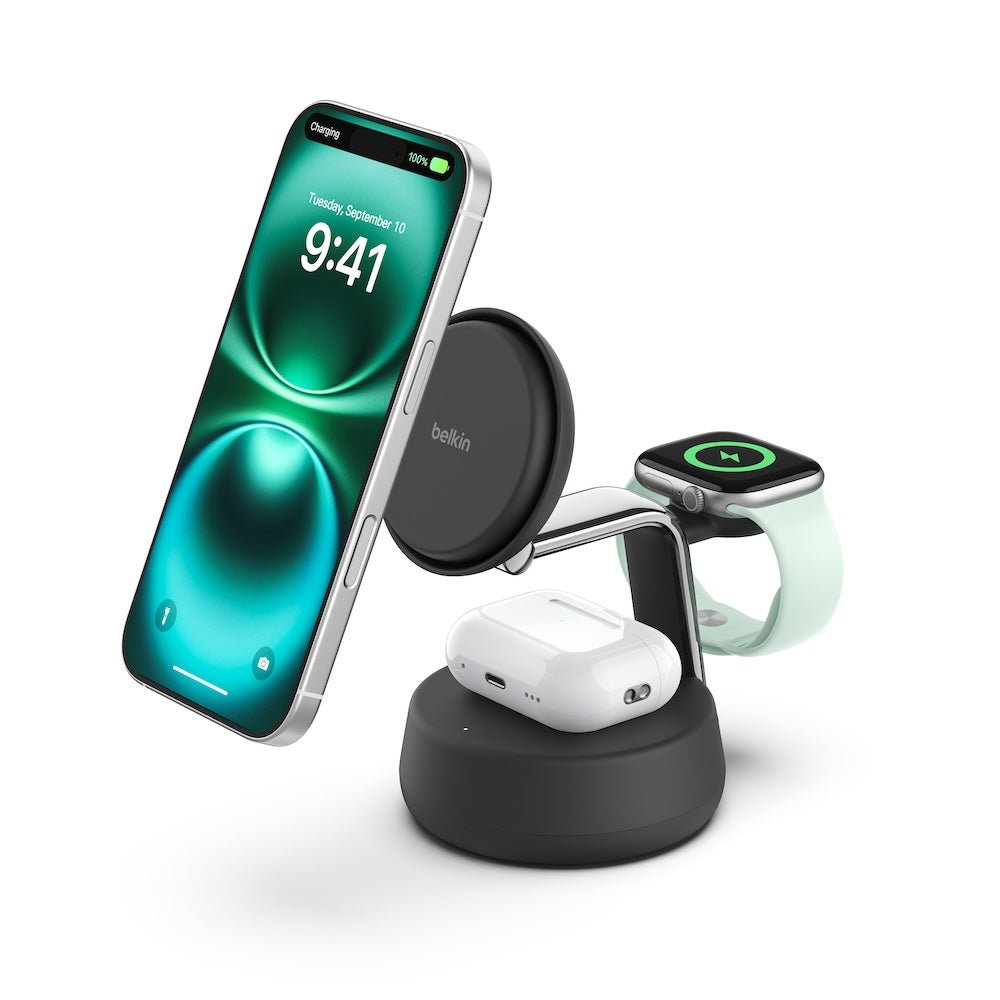
On a 3-in-1 dock, remove the watch and earbuds and disconnect any wired accessory from the phone. Use the same wall adapter and test the phone alone. Then put the other devices back one at a time. If the issue comes back with the dock loaded, check the dock’s manual for input requirements and which devices each charging position supports.
7. Compare one component at a time
Run two short charging sessions at a similar battery level and room temperature. Record the starting percentage and the percentage after 20 minutes with the screen off. Change only one item, such as the case, wall adapter, or charging pad. The battery percentage can show whether a change helped. Use it as a practical comparison, since it cannot tell you the exact wireless wattage.
When replacing the charger makes sense
Consider replacing it if the phone charges reliably on another compatible pad but repeatedly disconnects from yours with the recommended power supply and the case removed. If you want a speed upgrade, first confirm your phone can use the higher charging rate. For a three-device setup, see our Belkin WIZ040 vs WIZ023 comparison. For a phone-only setup, start with our Qi2 vs MagSafe guide.
As an Amazon Associate, MultiChargers earns from qualifying purchases.
Shopping for a 15W three-device stand?
The Belkin WIZ023 is an option if your phone supports 15W Qi2 and you also charge an Apple Watch and compatible earbuds. Confirm the listing shows model WIZ023 and check the box contents before ordering. See our Belkin WIZ023 review for the setup details.
Frequently asked questions
Will a bigger wall adapter make my Qi2 charger faster?
It may help if your current adapter falls below the charger’s requirements or shares power with other devices. Once the adapter meets those requirements, extra adapter wattage cannot raise the phone or pad’s wireless charging ceiling.
Does the charging icon mean my iPhone is getting 15W or 25W?
The icon shows that the phone is charging. It gives no wattage reading. Check the model specifications for the peak rate and use the same-condition test above to compare your setups.
Can a magnetic case give my phone Qi2 25W support?
A case can improve physical fit when designed for the phone and charger. The charging rate still depends on what your phone and charger support together.