

Can a Power Bank Charge a MacBook? USB-C and MagSafe Guide
Match your Mac, output port, cable, and reserve energy before buying.
As an Amazon Associate, MultiChargers earns from qualifying purchases. Product links may earn us a commission at no additional cost to you.
Quick answer: can a power bank charge a MacBook?
Yes, with a compatible USB-C Power Delivery output and charging cable. Verify your Mac model, per-port output, power sharing, and capacity. Ordinary charging and model-specific fast charging are different requirements.
A documented laptop power-bank option
Anker 737 PowerCore 24K, model A1289, offers up to 140W total output. Match its current port specifications to your Mac and cable before buying.
Check Anker 737 A1289 on Amazon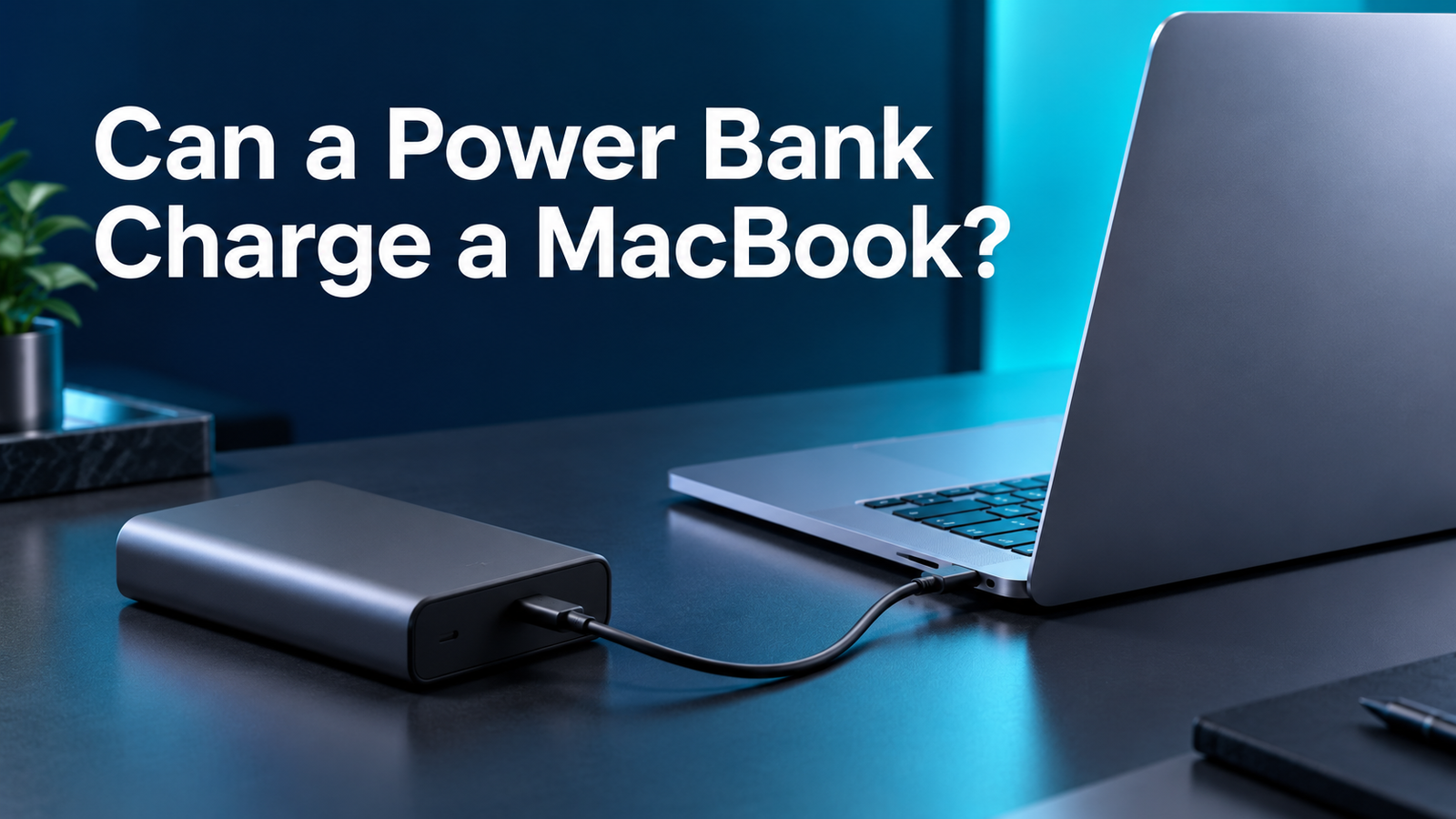
Start with the exact MacBook model
Yes, a suitable USB-C Power Delivery power bank can charge a MacBook that supports USB-C charging. You need a compatible output, a correctly rated cable, and enough power for your intended workload. A large milliamp-hour number alone does not establish compatibility. Find the model and year in About This Mac before choosing accessories.
A portable battery can solve several different problems. You may need a short emergency top-up, reserve energy during meetings, or enough output to keep working on a long journey. These goals do not require the same equipment. Decide whether your priority is lighter weight, stronger output, or more stored energy before comparing products.
This article is a documentation-based compatibility guide. We have not independently tested every MacBook and power-bank combination. Maximum specifications describe capabilities, rather than guaranteed charging speed. The practical checks below help you verify a setup for your own computer without relying on broad claims such as works with all laptops.
1. Confirm that your Mac supports the charging connection
The first check is the Mac, not the bank. Look up the charging ports for your exact model. Supported USB-C Mac laptops can use a direct USB-C charging connection. The power source must supply a compatible charging mode; a connector that physically fits does not prove that it provides useful laptop power.
Older Macs with original MagSafe or MagSafe 2 are a separate case. A USB-C cable does not connect directly to those ports, and a USB-C to MagSafe 3 cable cannot replace either older connector. Avoid buying an adapter based only on the word MacBook in a listing. Confirm supported models and manufacturer instructions before considering a conversion accessory.
Also distinguish laptop MagSafe from magnetic wireless phone charging. A phone power bank’s magnetic surface does not charge a MacBook. That product would need a separately documented USB-C laptop output to be useful here. Read the output specifications rather than assuming every product carrying the same familiar marketing term serves the same purpose.
Confirm supported connections in Apple’s Mac charging guide.
2. Choose USB-C or MagSafe 3
For ordinary charging on a supported Mac, USB-C to USB-C is usually a straightforward path. Connect a documented output on the bank directly to a charging port on the laptop. Starting without a dock makes verification easier because an intermediate hub can reserve part of the supplied power for its own operation.
A Mac with MagSafe 3 can also use an appropriate USB-C to MagSafe 3 cable and supported power source. This leaves USB-C ports available for storage and other accessories. The breakaway connector can also be convenient at a desk. Keep its contacts clean and dry and use charging equipment supported for that connection.
Fast charging is more specific than ordinary charging. The best cable path depends on the exact Mac generation. Changing to MagSafe does not by itself guarantee a faster result. The source, cable, and Mac must support the required combination. Check Apple’s model-specific fast-charge instructions before spending extra on a particular cable or bank.
Check Apple’s fast-charge combinations for your exact model.
3. Compare single-port output with your charging goal
Watts describe the rate at which power can be supplied. A compatible bank with a higher maximum rating does not force the Mac to consume its entire advertised output. USB Power Delivery lets compatible equipment establish a supported power level. The Mac’s needs and charging conditions affect what it draws.
Use the recommended adapter for your exact Mac as a starting point when you want a similar everyday charging experience. A lower-output source may still help while the computer sleeps or during light use. That does not mean it can keep battery percentage rising during a demanding workload. An emergency top-up and a full replacement for the usual charger are different goals.
A 65W-class USB-C PD bank can be a useful shopping candidate for many compatible MacBook Air use cases. Higher-output classes can offer more headroom for supported machines. These are shopping filters, not universal compatibility promises. Verify the selected port’s electrical profiles, the cable, and the computer before treating a wattage class as the answer.
| Goal | Check | Limit |
|---|---|---|
| Emergency top-up | Compatible PD output and cable | May need light use or sleep |
| Everyday work | Per-port power versus recommended adapter | Workload and power sharing matter |
| Fast charging | Exact model, source, and cable combination | Headline watts alone are insufficient |
| Longer runtime | Stored Wh and realistic losses | No guaranteed full-recharge count |
4. Read the multi-port power-sharing chart
The large number on the box may describe total output across several ports. It does not necessarily describe what the laptop receives while a phone is also connected. Find the manufacturer’s single-port, two-port, and three-port charging combinations. Built-in cables may have their own limits as well.
Consider a hypothetical bank with 100W total output that allocates 65W to its laptop port and 30W to a second port when both are used. The Mac does not receive 100W in that configuration. This example illustrates sharing; it is not a specification for the featured Anker product. Check the actual chart for the candidate you plan to buy.
Connect the Mac alone for your first test. If adding a phone changes charging behavior, disconnect the phone and compare again. The difference can reveal a shared-output limitation. Some equipment may briefly reconnect when the port allocation changes. Plan around documented output in your actual configuration rather than adding the individual maximum numbers together.
5. Choose a cable with the right charging rating
The cable is part of the power path. A 60W cable can be suitable within its rating, but it does not establish a supported 100W or 140W connection. Above 60W, choose a correctly rated 5A cable with electronic identification. For power above 100W, look for explicit support for the required Extended Power Range.
Data speed and charging power are separate specifications. You do not need a premium video cable merely to charge a laptop. Buy for power rating, connector type, useful length, and reliable construction. Clear specifications are more valuable than vague wording such as professional fast charging cable.
Inspect both plugs and the cable jacket before relying on it. Replace damaged insulation, exposed conductors, or bent connectors. Route the cable so luggage cannot pull on the laptop port. For troubleshooting, compare with a known working charging cable rather than repeatedly reconnecting a cable with an uncertain rating.

6. Use watt-hours to compare reserve energy
Capacity and output answer different questions. Watts describe available power, while watt-hours describe stored energy. A compact bank can have strong output but limited runtime. A larger bank can store more energy without supplying enough power for a demanding laptop workload. Check both figures separately.
Do not compare cell-based milliamp-hours directly with the MacBook battery as though the numbers refer to the same voltage. To calculate watt-hours, multiply mAh by nominal volts and divide by 1,000. Use the manufacturer’s printed Wh rating when available. The internal cell voltage and the USB output voltage are not interchangeable in that calculation.
Here is a planning example using hypothetical values: an 80Wh bank delivering 80 percent of its stored energy would make about 64Wh available to the charging setup. At an assumed average laptop demand of 20W, that represents roughly 3.2 hours of energy. This is an illustrative calculation, not a measured result or promised runtime for a real product.
Actual results vary with screen brightness, apps, connected accessories, battery condition, and conversion losses. The Mac consumes part of the supplied energy while you work. A bank with nominal energy matching the laptop battery therefore does not necessarily provide one complete recharge. Leave reserve margin when planning an important session away from an outlet.
Read mAh versus Wh and 20,000mAh laptop charging calculations for more sizing guidance.
7. Connect and verify before you travel
Charge the bank according to its manual and place it on a firm uncovered surface. Connect the intended USB-C laptop output directly to the Mac using the selected charge cable. Check the battery menu for charging status. If the bank shows input and output information, verify that it is supplying the laptop rather than being recharged by it.
System Information can help identify the detected source. Hold Option while opening the Apple menu, choose System Information, select Power, and inspect AC Charger Information. Treat the listed wattage as connection information. It is not a live measurement of the energy entering the battery every second.
Try the workload you actually expect to run. A setup that charges a sleeping Mac may behave differently during a long video call or export. Observe whether battery percentage rises, holds steady, or falls. This practical check is more useful than assuming a product headline describes your real working conditions.
Keep the first trial simple, then add accessories one at a time. This makes it easier to identify what changes available power. On an important first trip, carry the normal charger until you have verified the portable setup. Familiarity with your equipment helps avoid discovering a compatibility issue when the laptop is nearly empty.
What if the Mac charges slowly or says Not Charging?
A status message does not automatically mean the bank is defective. The available output may be low for the current workload, battery management may pause charging, or the cable may limit the negotiated connection. Read the exact message and check battery settings before replacing equipment.
Disconnect other devices, select the bank’s strongest documented laptop output, and connect directly to the Mac. Check remaining bank charge and cable rating. Temporarily close heavy applications or let the computer sleep. If battery charge then rises, available power and workload may explain the difference rather than a complete connection failure.
If the bank shows input rather than output, consult its instructions for USB-C role behavior. Do not connect additional cables between the same bank and Mac to force a direction. Compare with the usual charger and a known working cable. A laptop that also fails with its normal setup may need Apple’s charging troubleshooting rather than a different portable battery.
Buying example: Anker 737 PowerCore 24K, A1289
Anker’s documentation lists the 737 Power Bank, model A1289, with 24,000mAh capacity and up to 140W total output. Its USB-C1 output specifications include 20V at 5A and 28V at 5A. These are source capabilities to compare with a specific Mac and cable, not a promise that every MacBook receives 140W.
This is a documented laptop-oriented candidate to examine when a basic phone bank is unsuitable. Before buying, review the current multi-port allocation chart, included cable specifications, warranty, size, and weight. A higher output ceiling can be useful, but portability still matters if you carry the bank every day.
Confirm A1289 and PowerCore 24K in the retailer listing. Similar brand names or model numbers can refer to different products. We have not independently measured its runtime or tested every MacBook pairing. The direct shopping button opens the specific product listing; check current availability and seller information there.
Check the exact A1289 model
Check Anker 737 A1289 on AmazonSpecifications: Anker’s product documentation. No independent performance test is claimed.
Plan for travel and everyday care
For a commute, choose enough reserve energy to reach the next outlet without adding weight you will avoid carrying. For longer sessions, evaluate both stored Wh and sustained single-port output. Buying only for maximum power can overlook runtime, while buying only for capacity can overlook whether the laptop receives sufficient power.
Keep the bank uncovered while charging. Do not run it inside a tightly packed bag or beneath clothing. Stop using equipment that is swollen, leaking, physically damaged, or unusually hot and follow the manufacturer’s handling advice. Ordinary warmth can occur during conversion, but a change in the battery enclosure requires attention.
Before a flight, read the printed Wh label and verify your airline’s current rules for your itinerary. Do not infer permission from another traveler or an old product review. Keep the rating label readable and protect ports from accidental contact. Your charging setup also needs to suit the airline’s restrictions on use during the journey.
A practical pre-purchase checklist
Write down your exact Mac model, the output needed for your workload, and your preferred USB-C or MagSafe connection. Then check the bank’s chosen output port, the allocation when another device is attached, the cable’s rating, and the printed watt-hour capacity. These details make two otherwise similar listings much easier to compare.
Think about how the bank will be recharged as well. Input power is separate from laptop output. A powerful bank can take longer to refill if you pair it with a small phone charger. Check supported input and bring a suitable wall charger when the bank must be ready for another work session.
The most useful purchase is a verified setup with enough output and energy for the task. A MacBook Air used for writing and a MacBook Pro running demanding creative software can have very different needs. Choose around your actual use, and confirm behavior before relying on a universal compatibility statement.
MacBook power-bank FAQ
Can a 65W bank charge a MacBook Air?
A suitable 65W USB-C PD output can be a candidate for many compatible Air use cases. Verify the exact model, output profiles, and cable. It does not guarantee model-specific fast charging.
Can two banks charge a Mac faster?
Apple says a Mac charges through one port at a time using the source that supplies the most power. Connecting two sources does not add their outputs together.
Does every 20,000mAh bank fully charge a MacBook?
No. Compare Wh, usable energy after losses, laptop battery capacity, and energy consumed during work. The mAh label alone cannot establish a recharge count.
Can I recharge the bank while it powers my Mac?
Only when the manufacturer explicitly supports the arrangement and documents its limits. See laptop pass-through charging checks.
Sources and related guides
- Apple: recommended Mac power adapters and checking wattage
- Apple: charging ports and status messages
- Apple: fast charging by model
- Anker: A1289 specifications
Continue with laptop power-bank wattage, slow laptop charging troubleshooting, or power-bank travel checks.


One Comment