

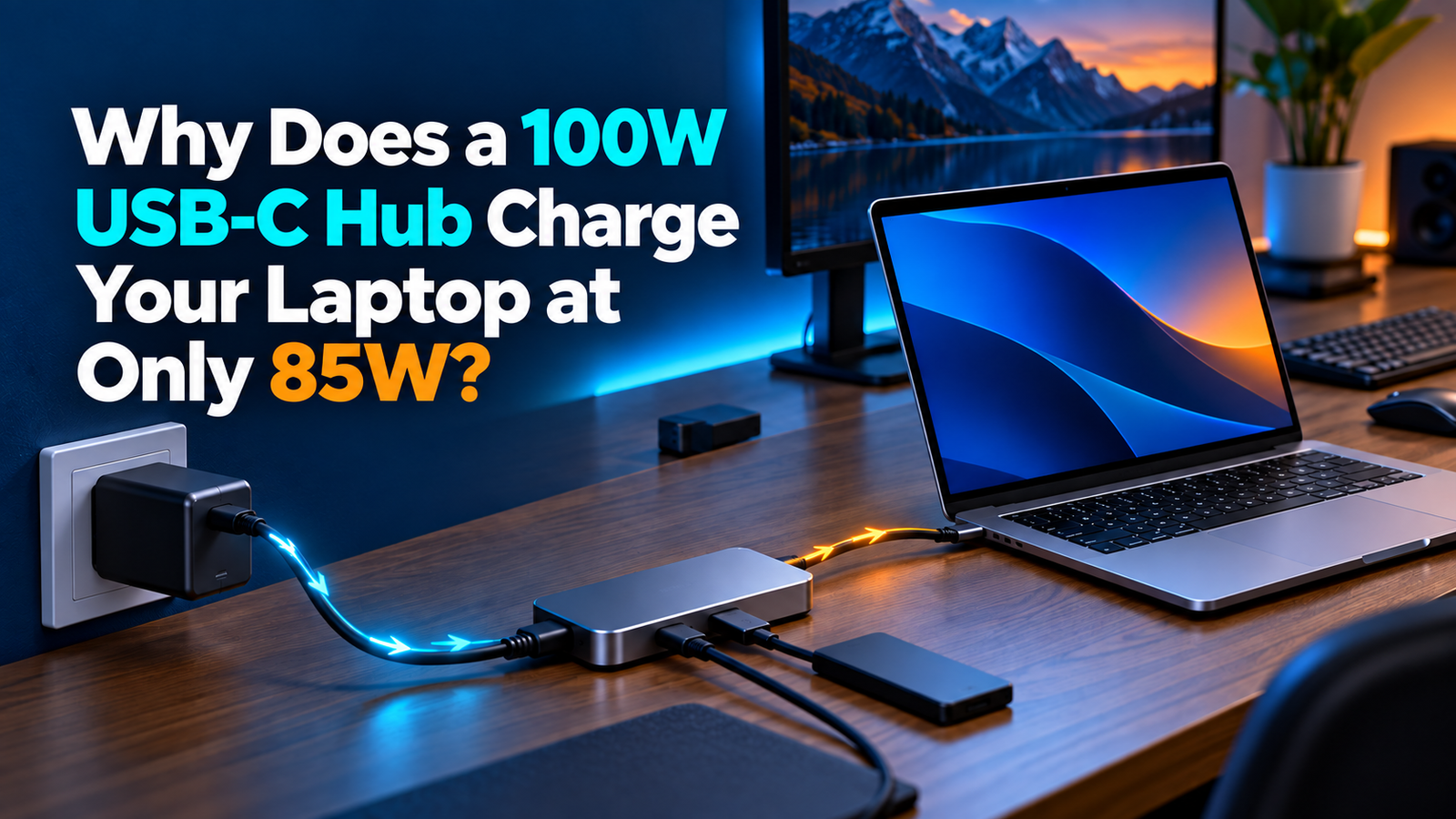
Why Does a 100W USB-C Hub Charge Your Laptop at Only 85W?
Why Does a 100W USB-C Hub Charge Your Laptop at Only 85W?
The hub needs power too. Learn what its 100W label actually promises, how to size the charger and cable, and what to check when the laptop charges slowly.
By Daniel Carter · Research-led guide · September 2026
The bold “100W” on a USB-C hub can be easy to misread. Sometimes it describes the maximum power the hub can take in through its dedicated PD input. It does not necessarily describe the power that reaches your laptop. A powered hub runs its own electronics and may feed attached accessories. The manufacturer should state a separate laptop-facing pass-through figure. Those two ratings answer different questions.
This distinction matters if you are building a one-cable desk with HDMI, USB drives, Ethernet and a charger. If a laptop normally uses a 90W or 100W adapter, a hub capped at 85W may keep it running and charge it during light work, yet charge slowly or lose battery under a demanding workload. The right answer depends on that computer’s accepted USB-C input and the exact hub specification. Here is a practical way to read the numbers without treating a marketing label as a guarantee.
What does 100W pass-through actually mean?
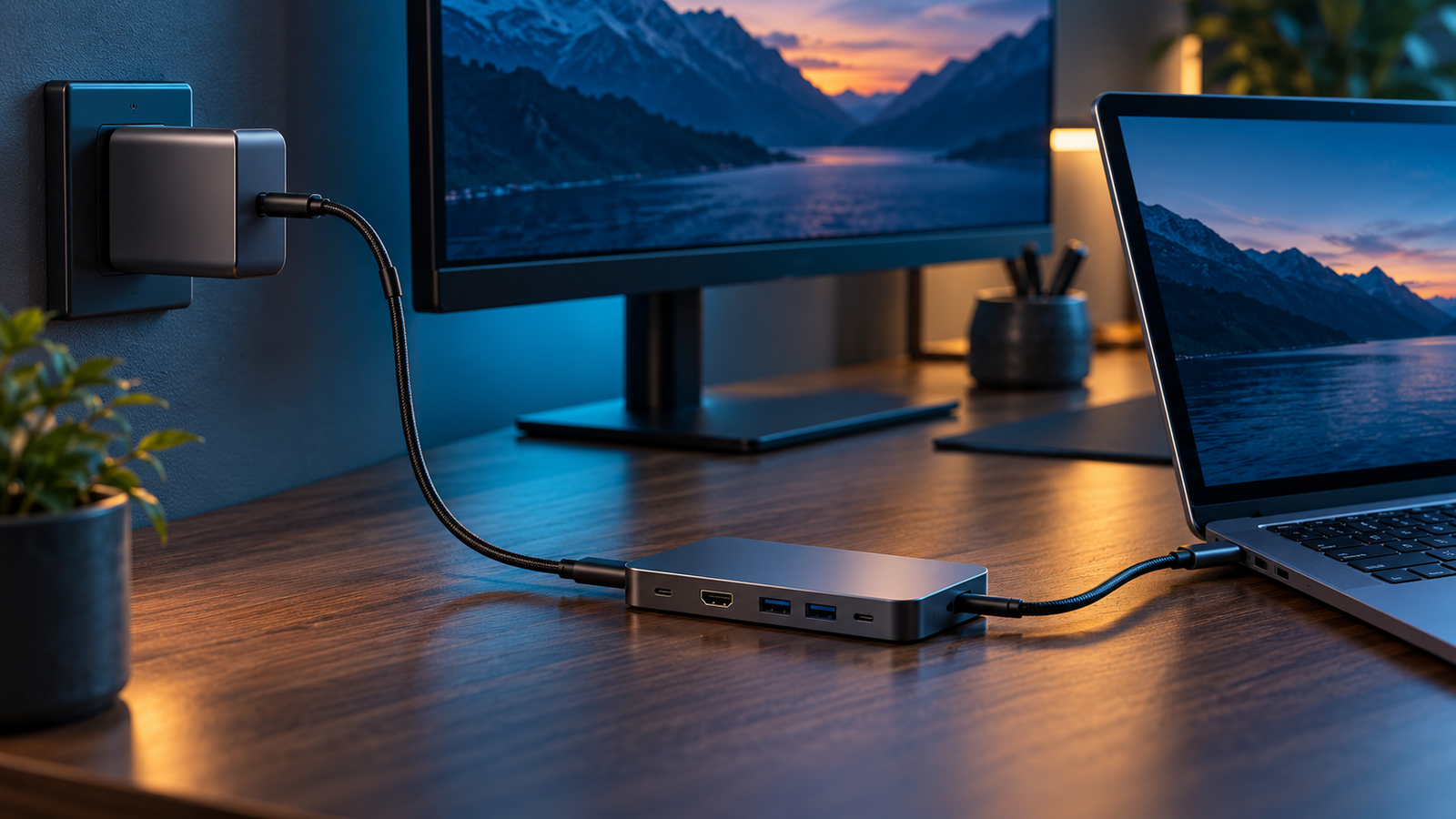
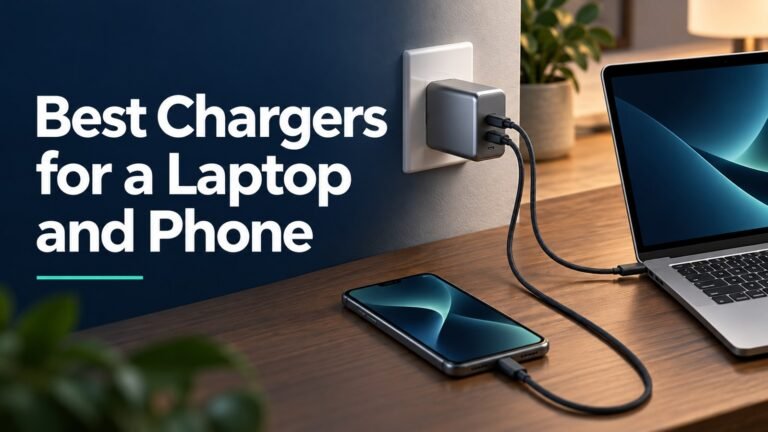
Pass-through charging routes power from a separate USB-C PD charger into the hub and onward through the hub’s computer-facing connector. The charger plugs into the hub’s PD-IN port. The hub’s attached cable or upstream connector plugs into the laptop. The hub is not creating power; it is distributing available power while operating its own data, video and peripheral functions.
For the Anker 555 USB-C Hub (8-in-1), Anker’s user guide identifies a 100W maximum PD input and up to 85W charging to the connected laptop. It says 15W is used to run the hub. In that exact example, the simple budget is 100W input capacity − 15W reserved for hub = up to 85W laptop output. This is a rated maximum under suitable conditions, not a constant wattmeter reading. Actual negotiated and consumed power can vary with the laptop’s battery state and activity.
Another model can reserve a different amount, have a lower input ceiling, or offer a different host output. Do not copy the 85W result onto every “100W” hub. Read the model’s own specifications for “PD input,” “pass-through charging,” “power delivery to host,” or “laptop charging.” If the listing says only “100W PD” without clarifying which side gets it, consult the manufacturer’s manual before buying.
| Specification | What it means | Why it matters |
|---|---|---|
| 100W PD input | Maximum compatible power the hub can accept at its charging input in this example. | Does not promise 100W to the laptop. |
| 15W hub allowance | Power Anker reserves for operation of this particular model. | Explains the published input-output difference. |
| 85W laptop pass-through | Maximum power available through the host connection for this model. | Compare with the laptop’s USB-C charging requirement. |
| 100W charger | Source that can provide an appropriate 100W PD mode on the port in use. | A 100W total label on a multi-port charger may not mean 100W on one port. |
| 100W-capable cable | Appropriately rated cable between charger and hub. | A lower-rated cable can constrain the intended input. |
USB Power Delivery is the negotiation system behind compatible USB-C charging. USB-IF explains that PD supports flexible power alongside data over one cable. It also distinguishes the older 100W ceiling from higher-power modes introduced with PD 3.1. A hub rated for 100W input remains a 100W-input hub even if you connect a newer 140W or 240W charger. The charger does not upgrade the hub’s output stage.
Does a 65W charger deliver 50W through this hub?
Subtracting the documented 15W hub allowance from a 65W source gives a rough budget illustration of 50W, but it is not a verified 50W output specification for every configuration. USB PD works through supported voltage and current profiles, and a device may negotiate a lower mode or reject a combination that its manufacturer does not support. Peripherals and the hub’s operating state may change demand. Use the manual’s actual supported charger guidance rather than a bare subtraction as a purchasing promise.
Anker’s guide for the 555 says an 85W laptop should use a 100W PD charger and appropriate 100W cable for optimal charging. It illustrates that a laptop needing 65W would require a source budget of at least 80W after adding the hub’s 15W allowance. That example does not mean every charger sold as “80W” will necessarily provide the right PD profile. Confirm the wattage available from the chosen port and the charger’s supported USB-C PD modes.
If a 65W charger is the only source you own, you can still test the hub according to its manual. A light laptop may accept a reduced charging level. A demanding machine may show “slow charger,” refuse to charge, or gradually drain while operating. Do not infer a hardware fault solely from slower charging. Compare with direct charging from that same adapter, using a suitable cable and the laptop’s supported input port.
Why can the real charging rate be lower than 85W?
The laptop controls what it draws
The hub’s 85W is a maximum output rating. The computer negotiates a supported PD mode and decides how much current to take. A battery near full charge generally draws less than a low battery. Charging controls may reduce input because of temperature or battery-health settings. The laptop can also consume incoming power to run the system while only the remainder goes toward the battery. A software readout showing lower battery-charging wattage does not by itself prove that the hub is failing to provide its rated capability.
The charger may split power across ports
Many multi-port adapters advertise their highest total output prominently. A unit marked 100W might offer 100W from one USB-C port only while other ports are empty, then divide its power when you plug in a phone. Check the output table printed on the charger or published by its maker. If the hub is connected to a port receiving only 65W after sharing, the hub cannot pass 85W through to the laptop. Our multi-port power-sharing guide explains this behavior in more detail.
The charger-to-hub cable may be the constraint
To use a 100W-class source, the cable between the charger and the hub must support the intended current and be appropriate for that charging mode. USB-C cables that appear identical can have different power ratings. A 60W-class cable should not be assumed to deliver a 100W input. Read the cable’s certified or manufacturer-stated power rating and replace damaged or unmarked cables when the specification is uncertain. Our e-marked cable guide explains why cable identification matters at higher currents.
The hub or laptop port may have another limit
Some laptops have USB-C ports for data and video but do not accept charging through them. Some accept USB-C PD at a lower maximum than their original proprietary adapter, or require a minimum to run normally. Conversely, the hub’s PD-IN socket often exists only to accept a charger; it may not function as a spare USB-C data or video port. Anker states this specifically for the 555 model. Follow the arrows in the product’s port diagram and use the laptop’s charging-capable USB-C connector.
Your measurement may describe a different quantity
A USB-C power meter on the charger-to-hub cable measures input to the hub. A meter on the hub-to-laptop connection, if compatible with that setup, measures the upstream power negotiated with the computer. A battery app may report only battery charging, not the laptop’s total incoming power. Those values can differ without contradicting each other. Test under a consistent battery level and workload if you are comparing setups; do not use a one-second reading to label a product defective.
Anker 555 USB-C Hub (8-in-1)
This is a useful documented example for understanding the rating: Anker specifies 100W PD input, up to 85W pass-through to a compatible laptop, and a 15W allowance for the hub. The dedicated PD-IN port is for power, while laptop charging and HDMI video depend on the computer’s supported USB-C functions. The guide says the charger and 100W cable for optimal 85W charging are separate. Check the current model and local availability before purchase.
Read Anker’s specifications →Editorial specification example, linked to manufacturer support. No affiliate commission is attached to this link. We have not independently tested this hub for this article, and its stated 15W allowance should not be generalized to other models.
How to choose the right charger for a pass-through hub
Start with the laptop rather than the number on the hub’s box. Identify the laptop’s supported USB-C charging modes and any manufacturer minimum. Then find the hub’s maximum host output and its input requirement. A 100W-input, 85W-output hub cannot meet a computer’s full 100W charging requirement through that path. You may still be able to use it for data and display while charging separately, subject to the laptop maker’s guidance.
Choose a charger whose single port can provide the hub’s required input while your other devices are connected as intended. Inspect the output combination chart. For an 85W host target on the Anker example, that means a compatible 100W USB-C PD source available to the hub, plus the specified cable. If the charger reallocates power when you add a second device, the hub input may fall. A high advertised total does not replace per-port verification.
Then inspect the cable from wall charger to hub, the hub’s permanently attached or detachable host cable, and the laptop port. The charger cable needs the required power rating. The hub-to-host connection needs to be used as specified by the hub maker. If your desk also uses a high-resolution display, check the laptop’s DisplayPort Alt Mode, Thunderbolt or USB4 support and the hub’s published display capabilities. Charging support does not establish video support.
| Your laptop situation | What to check first | Practical approach |
|---|---|---|
| 45W or 65W USB-C notebook | Minimum input and hub host output. | A correctly powered 85W-output hub may have ample headroom; verify exact port and charger. |
| 85W-class USB-C notebook | 100W source on one port, suitable cable, hub’s 85W host rating. | Use manufacturer-recommended combination and test under workload. |
| 100W or higher-demand laptop | Whether reduced-power USB-C input is supported. | Expect slower charging or a warning from an 85W hub; retain original adapter if needed. |
| Multiple devices on one charger | Per-port distribution with all plugs occupied. | Choose a charger that still gives the hub its required input, or use a dedicated adapter. |
These are decision examples, not universal laptop compatibility claims. A laptop supplied with a 100W adapter might accept less power during light work; another may reject a lower input. Its manual and actual behavior matter. Our laptop wattage guide provides a broader way to compare adapter ratings with your device.
Step-by-step troubleshooting when charging is slow
- Confirm the wiring. Plug the PD charger into the hub’s marked PD-IN port, and the hub’s host connector into the laptop’s charging-capable USB-C port. A regular downstream USB-C accessory port may not provide this route.
- Check the adapter’s port table. Verify its single-port PD capability with your current combination of plugged-in devices. Disconnect other loads temporarily to test whether power-sharing is the cause.
- Verify the cable rating. Use the cable recommended by the hub maker or a properly specified replacement for the desired 100W input. Inspect connectors for wear.
- Compare direct charging. Plug the same charger directly into the laptop with a suitable cable. If the laptop charges normally, inspect the hub’s input/output limits and port selection.
- Try a light workload. Note the battery trend while the computer is idle, then under your usual work. A source may maintain charge during browsing but fall behind during rendering or gaming.
- Read any warning carefully. A low-power adapter warning often indicates a power mismatch. Check the laptop maker’s minimum and supported PD modes before buying a different accessory.
- Check the hub documentation. Confirm firmware or configuration guidance only for the exact model. Do not apply an unrelated model’s 15W allowance or compatibility claim.
If the laptop fails to charge directly from a known compatible charger as well, the hub may not be the issue. Check the computer’s port, battery settings and manufacturer troubleshooting. If video or data fails while charging works, that is a different path: inspect display output support, cable data/video capability, hub display limits and the monitor connection. Keep your tests separate so you can identify the failing function.
Can a 140W charger turn an 85W hub into a 100W hub?
No. A higher-capacity adapter can supply the compatible modes the hub requests, but it cannot raise the hub’s published 100W input or 85W host output ceiling. USB-IF notes that PD 3.1 introduced higher-power capability beyond the earlier 100W range. Every device in the path has to support the appropriate mode. A 140W charger, a 240W-rated cable and a hub capped at 85W host output still leave that hub as the limiting stage for the computer.
Choose a different hub or docking station with a manufacturer-stated host output suited to your laptop if the full original-adapter performance is required through one cable. A self-powered dock’s large AC adapter rating does not automatically equal its laptop output either; look for the separate “power delivery to host” figure. If your existing monitor can charge a laptop directly, compare its own laptop-facing PD output as another option. See our USB-C monitor charging guide for that setup.
Frequently asked questions
Does every 100W USB-C hub supply only 85W to a laptop?
No. The 100W-in/85W-out/15W-for-hub numbers are documented for specific models such as the Anker 555. Different hubs can have different input, reserved power and host-output ratings. Check the exact manufacturer’s specifications.
Is the missing 15W wasted as heat?
Do not describe the full 15W allowance as pure heat. In the documented example, it is the budget reserved to operate the hub and its functions. The actual power drawn and losses vary. The guide states a maximum output calculation, not a continuous heat measurement.
Will a 100W charger always give my laptop 85W through the hub?
No. The charger must make an appropriate 100W PD output available on that port, the cable and hub must support the setup, and the laptop must accept the negotiated mode. Its current draw also changes with battery state and workload.
Can I use a 65W charger with a 100W-input hub?
The result depends on the hub and laptop. A lower-power source cannot provide the documented maximum 85W host output of the Anker example. Read the model guidance and test with a compatible laptop; do not assume a precise 50W host result from arithmetic alone.
Does the hub’s PD-IN USB-C port transfer files or video?
Not necessarily. The Anker 555 guide says its PD-IN port is for charging input and does not support data transfer or video output. Use the specific hub’s port diagram; other USB-C connectors on the same hub can have different roles.
Will an e-marked 240W cable increase the hub’s 85W limit?
No. A sufficiently rated cable removes a cable-side constraint, but it cannot alter the hub’s own host-output ceiling. Confirm both the power rating and any data/video capability needed on each cable run.
Why does my laptop battery drain while the hub says it is charging?
The laptop may use more power under a heavy workload than the source provides to its system and battery combined. Check its current charging input, charger sharing, hub output ceiling and manufacturer power guidance. Use the original adapter when full performance is required.
The practical answer
“100W USB-C hub” and “85W laptop charging” can both be correct. The first may refer to the hub’s maximum PD input, while the second is its maximum laptop-facing output after the hub’s documented power allowance. On Anker’s 555 model, that difference is 15W. Treat the number as a product specification, then check the charger port, cable, laptop input and workload before deciding whether the hub suits your desk. For a laptop requiring more, use its original adapter or select a dock with an adequately specified host output.
Sources: Anker 555 user guide; USB-IF, USB Power Delivery. Figures refer to documented maximums for the named model. No independent charging measurement is claimed.


2 Comments