


Can a USB-C Monitor Charge a Laptop? Power Delivery, Wattage, and Cable Requirements
Can a USB-C Monitor Charge a Laptop?
Yes, when the monitor supplies USB Power Delivery through the right port and the laptop accepts enough power. Here is how to check the wattage, video path, and cable before you buy.
By Daniel Carter · Research-led guide · September 2026
A single USB-C cable between a monitor and laptop is a neat desk setup. It may carry a video signal from the computer to the display, provide a USB data path for the monitor’s hub, and carry power in the opposite direction to the laptop. That combination is possible, but each function has its own requirements. A connector that fits is not evidence that all three functions work, and the USB-C port on the back or side of a display might be intended for an entirely different purpose.
USB-IF describes a wall-powered monitor charging a laptop while it displays the laptop’s output as one use of USB Power Delivery. Dell’s documentation for a specific 90W USB-C monitor likewise describes video, data, and laptop power through one cable, while warning that not every USB-C laptop supports the required functions. The answer to “can my monitor charge my laptop?” therefore lives in two product specifications, not in the connector shape. This guide gives you the checks and the fallback options.
How does a USB-C monitor power a laptop?
The monitor plugs into a wall outlet and operates as a USB-C power source. The laptop acts as the receiving device for charging. Through USB Power Delivery, the two sides negotiate a supported power level, subject to the monitor’s available output and the laptop’s charging limits. At the same time, a compatible laptop can send a display signal to the monitor over the same physical connection. The power and video travel in different logical directions even though one cable is used.
For many single-cable setups, the video path is DisplayPort Alternate Mode over USB-C. Some products use USB4 or Thunderbolt in their supported configurations. The exact specification matters for display resolution, refresh rate, hub behavior, and cable selection. A laptop may support USB-C charging without supporting video on that particular port; another may output video but have a different charging arrangement. Read the laptop manufacturer’s port diagram, not merely the side label.
A monitor can also have several USB-C ports with distinct jobs. One may be a high-power upstream port to a computer. Another may be a downstream port for a phone or accessory, offering much less power and no laptop video input. Dell specifically cautions that selecting the wrong Type-C port can cause no display because some monitor USB-C ports do not support video. Identify the laptop-facing upstream connector and the symbol or input designation in the manual before connecting.
| Part of the setup | What to confirm | What happens if missing |
|---|---|---|
| Monitor | USB-C upstream input with stated PD output to a laptop. | Display may work without meaningful charging, or the port may be accessory-only. |
| Laptop | USB-C charging input and compatible video output on the chosen port. | Power or picture may fail even when the cable plugs in. |
| Cable | Power current rating and video/data capability for the monitor mode. | Reduced charging, no video, or a limited display mode is possible. |
| Wattage | Monitor output compared with the laptop’s supported input and workload. | Slow charging, battery drain under load, or a low-power warning. |
| Settings | Monitor USB-C input, PD/standby options, and laptop display configuration. | Charging may stop when off or the display may select another input. |
This checklist is more reliable than the phrase “USB-C monitor.” Some displays use USB-C for a hub and video but provide only a small amount of power. Others explicitly provide 65W, 90W, or another rated laptop-facing output. Do not add the wattages of downstream accessory ports to estimate what the upstream port supplies. Use the monitor’s exact single-port PD rating.
Is 65W or 90W enough to charge your laptop?
Compare the monitor’s maximum Power Delivery output with the laptop manufacturer’s input guidance or original adapter rating. A thin notebook supplied with a 45W or 65W USB-C adapter may be well matched to an appropriately specified 65W monitor. A laptop supplied with a higher-power adapter may charge more slowly from that monitor. A 90W monitor can be a useful match for many work laptops, but “90W” is not a guarantee for every computer or workload. Dell notes, for example, that a notebook requiring more than a particular monitor’s 90W output may not charge through that USB-C connection.
Power demand changes. A laptop might show “charging” while sleeping or browsing, then slowly lose battery during a heavy CPU or GPU task because it is consuming more than the monitor supplies. The battery may also recharge more slowly while the computer is operating. This does not necessarily mean the monitor is broken; it means the available power is below the total demand in that situation. For demanding work, retain the original adapter if the computer maker recommends it.
Do not assume the original adapter’s label is the only acceptable input. Some laptops support several USB-C PD levels and can run at reduced power with a lower-rated source. Others impose a minimum, display a warning, or limit performance. The exact laptop manual is the authority. Our laptop charger wattage guide helps frame the comparison, and the 65W versus 100W guide explains why a larger power budget matters under load.

Dell UltraSharp U3223QE
Dell’s support documentation says this model can use one USB-C cable for video and data and supply up to 90W to a compatible laptop. It is a useful example of the exact laptop-facing PD figure to seek in a monitor manual. Confirm the laptop’s USB-C charging and video support, display resolution needs, current model details, and availability before buying. This is a specification example, not a claim of independent testing or a universal recommendation for every desk.
See Dell’s 90W USB-C details →Editorial example linking to Dell’s documentation; no affiliate commission is attached to this link. We have not independently tested the monitor for this guide. Check current regional product availability and specifications with Dell.
Can one USB-C cable carry video, data, and charging?
Yes, if both devices and the cable support that combination. The monitor can function like a small hub: the laptop sends video, the monitor makes attached USB accessories available to the laptop, and the monitor supplies power back to the laptop. However, the available data speed and display capabilities can change according to how the USB-C lanes are allocated and what the monitor and laptop support. For a high-resolution display with a USB hub, the manual may specify a setting or cable requirement that differs from a basic charging cable.
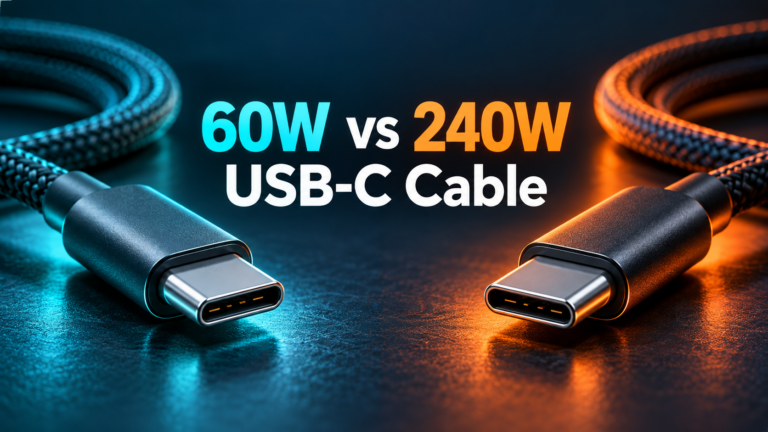
Do not use “USB-C cable” as a complete specification. Some cables are designed primarily for charging and support limited data. Others support the video and data features required for a monitor. A cable marked 240W states a power capacity, not automatically a video capability. Likewise, a high-speed data cable still needs an appropriate current rating for the intended laptop power. The safest starting point is the monitor’s included or explicitly recommended cable, followed by a properly specified replacement when necessary.
If video works but charging does not, the monitor may be connected through HDMI or DisplayPort while a separate USB-C cable runs to a downstream data port. That does not create laptop-facing PD. Use the monitor’s actual USB-C upstream input and confirm its power output. If charging works but video does not, inspect the laptop port’s display output support, monitor input selection, cable capability, and any adapters in the chain. Dell’s no-video troubleshooting guidance explicitly identifies wrong USB-C port selection as one possible cause.
What if the monitor provides less power than the laptop needs?
There are three possible outcomes, depending on the computer. It may accept the lower power and charge slowly. It may maintain its battery during light work but drain while performing demanding tasks. Or it may report an inadequate adapter and refuse to charge or limit performance. A low-power monitor is not automatically unsafe when both products negotiate compliant USB-C power, but it may be inconvenient as the sole source for a demanding laptop.
Keep the laptop’s original charger available for high-load work or travel when its full performance matters. If the laptop manufacturer permits simultaneous connections to a monitor and its own adapter, follow that guidance; do not assume two sources will combine wattage. They usually are not additive. Another option is a properly specified docking station or a monitor with higher PD output. If you choose a dock, read the dock’s laptop-facing output rather than the wattage of its input adapter; the dock itself and its peripherals also consume some power.
High-power USB-C charging beyond 100W brings additional Extended Power Range (EPR) compatibility questions. A cable rated for 240W does not cause a 90W monitor to supply 140W. The monitor, laptop, and cable must all support an appropriate mode. Read our USB-C PD 3.1 and EPR explanation before expecting a high-end laptop’s original adapter speed from a monitor.
How to check your setup before buying
- Identify the exact laptop model. Read the manufacturer’s port diagram and power specifications. Confirm that the chosen USB-C connector accepts charging and sends video.
- Identify the exact monitor model. Look for “USB-C upstream,” “USB-C video,” or similar wording together with “Power Delivery to laptop” and its maximum wattage. Marketing phrases without an output value are insufficient.
- Compare power ratings. Match the monitor’s laptop-facing output with the computer’s supported input and how you use it. Consider heavy workloads, not only sleep charging.
- Check display mode. Confirm that the monitor resolution and desired refresh rate are supported by the laptop port and cable. USB-C power support alone does not prove the desired video mode.
- Use the appropriate cable. Start with the monitor-supplied cable, or choose one whose published power and display/data capabilities meet the setup.
- Inspect hub behavior. If you need keyboard, mouse, Ethernet, or another display through the monitor, read the manufacturer’s hub and daisy-chain support and operating system restrictions.
- Read standby behavior. Some monitors have settings controlling USB power while the display is asleep or off. Confirm this separately if overnight laptop charging is important.
These checks apply equally when you already own both products. A monitor’s rear-panel markings and on-screen menu can help identify the upstream connection. The laptop’s system information or manufacturer support page can identify its video and charging capabilities. Avoid buying a new cable or power adapter until you know which function is failing.
Why your USB-C monitor is not charging the laptop
Wrong port on the display
Move the cable to the labeled computer-facing USB-C input. A downstream USB-C socket intended for accessories may offer a small amount of power but may not be a valid video input or laptop charger. If the monitor has several similar sockets, consult the exact port diagram.
Insufficient PD output
Compare the display’s power rating with the laptop’s minimum supported input. A 15W accessory port cannot replace a 65W laptop adapter. A 65W upstream source may operate a 90W machine only under some conditions. The laptop’s warning message can be a useful clue, but check the published specifications.
Charging input or video output unsupported
USB-C is a connector, not an assurance of every feature. The laptop port might not accept external power, or it might not offer the required video output. A compatible charging source cannot repair absent video capability, and an HDMI signal cannot supply laptop power through itself.
Cable or adapter limitations
Try the manufacturer-supplied USB-C cable directly, without an unverified adapter or extension. If it works, compare the replacement cable’s power and video specifications. A cable with 60W capability can be a constraint for a higher-current setup; consult our e-marked USB-C cable guide for current-rating concepts. Replace damaged connectors instead of repeatedly testing them.
Monitor or laptop settings
Select the correct video input, check the display’s USB-C priority or hub settings, and inspect any setting that controls USB charging in standby. Some computers also offer battery-preservation modes that limit or pause charging near a chosen percentage. The exact labels vary by model; use the respective manuals.
Demand exceeds supply
Observe whether the battery charges with the laptop asleep or lightly loaded, then drains during a demanding application. That pattern suggests an output shortfall, not necessarily a failed negotiation. Use the original charger for full performance if the laptop maker recommends it. Avoid treating one momentary charging-meter reading as a definitive test.
Monitor, dock, or separate charger: which setup fits?
| Setup | Best fit | Primary check |
|---|---|---|
| USB-C PD monitor | One display and a clean one-cable desk. | Upstream PD wattage, laptop video support, hub functions. |
| Dock with monitor | Many peripherals or more flexible display connections. | Dock laptop-facing PD after its own power use; display support. |
| Monitor plus original adapter | High-power laptop or full-performance workloads. | Maker’s guidance on simultaneous connections and cable layout. |
A one-cable monitor is convenient when its output matches your computer and its built-in hub meets your peripheral needs. A dock offers more flexibility but creates another specification sheet to check. The separate adapter is a simple fallback for machines whose power requirement exceeds the monitor’s capability. No configuration is universally “best”; choose from the laptop’s real input and the devices you plug in each day.
Frequently asked questions
Can any USB-C monitor charge a laptop?
No. The relevant monitor port must provide USB Power Delivery to the computer, and the laptop must accept charging through its selected USB-C port. A USB-C socket may be data-only or limited to accessory power.
Can a monitor charge and display through one cable?
Yes, when the monitor, laptop, and cable support the required power and video modes on the connected ports. Check the exact manuals and upstream USB-C input.
Is 65W enough from a monitor?
It depends on the laptop’s supported input and workload. It can be appropriate for some thin notebooks, while a more demanding computer may charge slowly or lose battery under heavy use.
Will a 90W monitor charge a 100W laptop?
Possibly at a reduced rate, but this depends on the laptop’s supported lower-power modes and workload. The 90W source cannot promise the same behavior as a 100W adapter. Follow manufacturer guidance.
Does a 240W USB-C cable make a 90W monitor charge faster?
No. The monitor’s maximum output and the laptop’s negotiated input determine the result. A cable’s higher capacity cannot increase the monitor’s source capability.
Does HDMI charge a laptop?
No. An HDMI video connection is not a USB-C PD laptop power path. Use the monitor’s supported USB-C upstream PD port or a separate laptop adapter.
Will the monitor charge my laptop when its screen is off?
That is model- and setting-dependent. Check the monitor’s standby USB-C power behavior and power-saving settings; do not assume off-screen charging continues.
The practical answer
A USB-C monitor can be your laptop charger and external display in one clean connection. Verify four things: the monitor’s upstream PD wattage, the laptop’s USB-C charging input, a supported video path, and a cable suited to both jobs. If the monitor supplies less power than the laptop needs under load, use the original adapter or choose equipment with a better matched output. Model-specific specifications beat the generic “USB-C” label every time.
Sources: USB-IF, USB Power Delivery; Dell, U3223QE USB-C monitor guidance; Dell, USB-C monitor video troubleshooting; Dell, P3424WEB power and laptop requirements. Product examples are documentation-based, not independent testing.


3 Comments