

Why Does My Multi-Port Charger Slow Down When I Plug In Another Device?
Multi-port charger troubleshooting
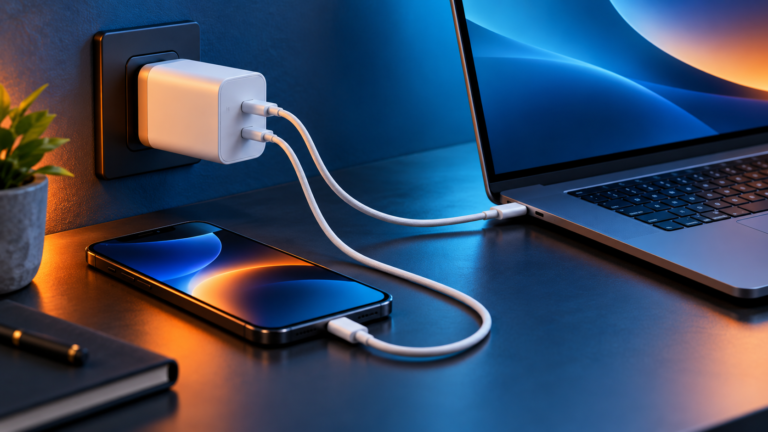
Your laptop charges quickly when it is the only thing plugged in. Then you connect a phone, watch the laptop’s charging estimate grow, and wonder if the charger is failing. Usually, the explanation is a shared power budget. The wattage on the box, the maximum of each port, and the power available with two or three ports occupied can be three different numbers.
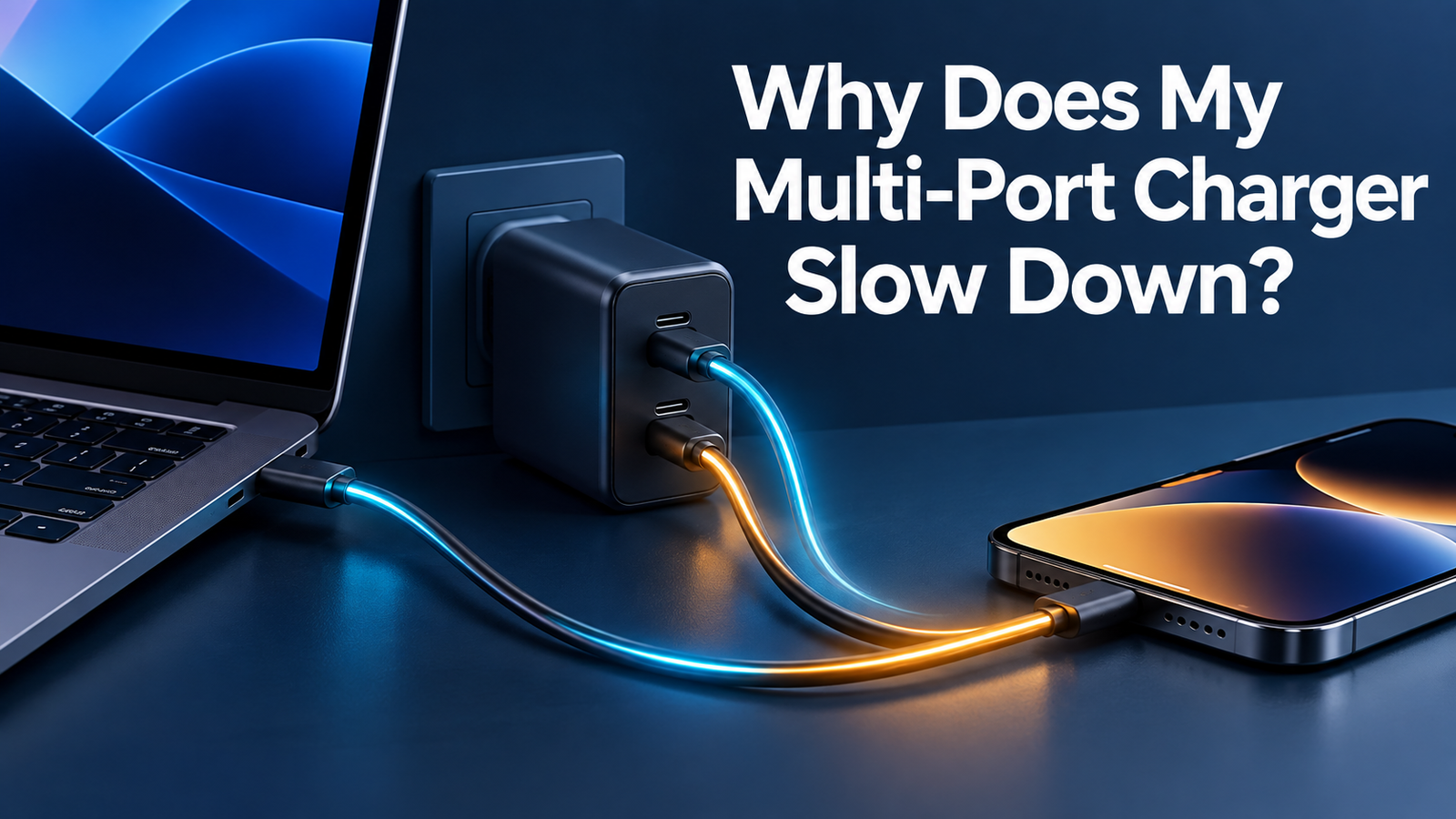
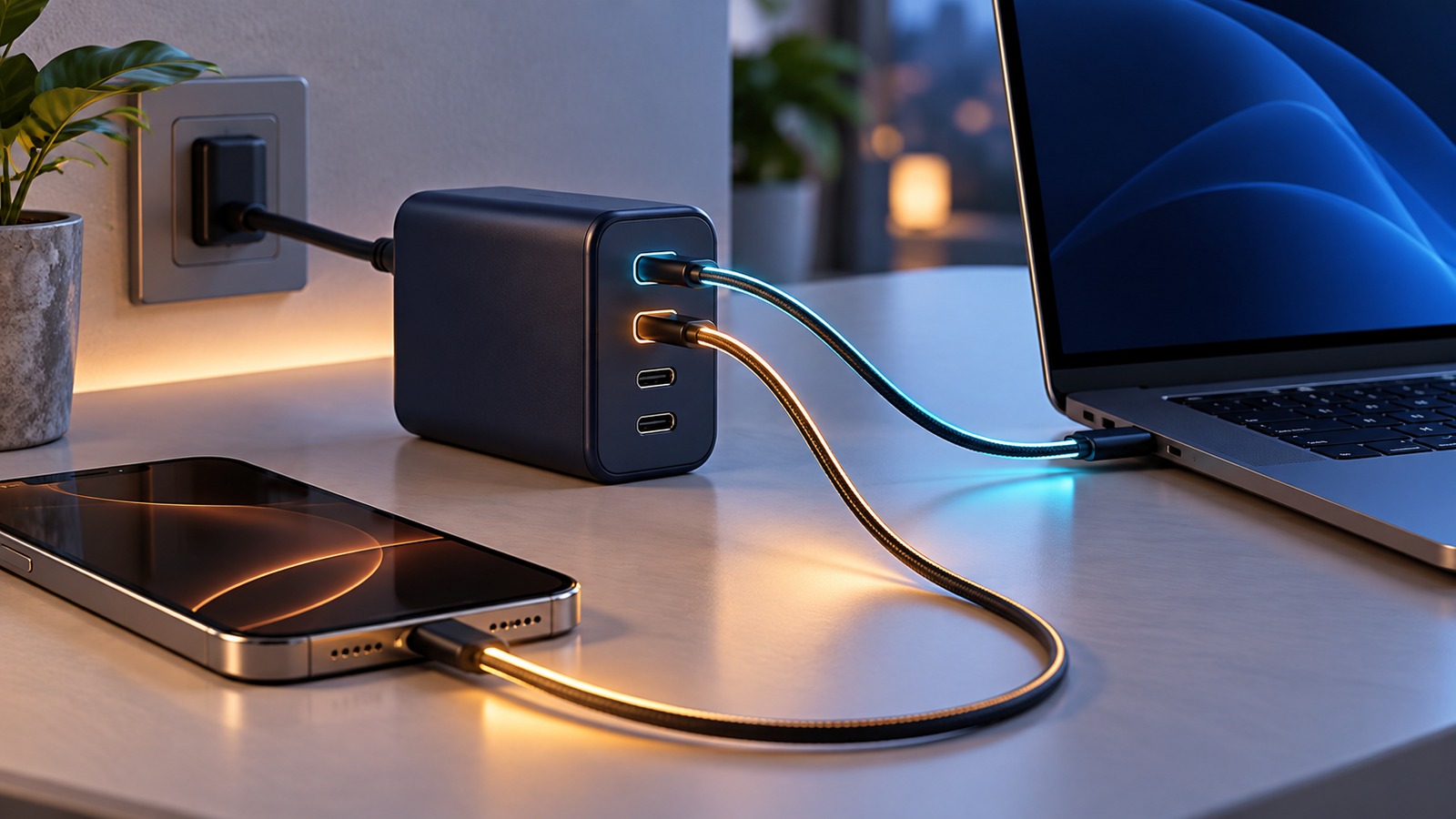
A multi-port charger may slow down when another device is connected because it reallocates a limited total output across active ports. A 100W total rating does not mean 100W from each port at the same time. The charger may briefly interrupt charging while USB-C Power Delivery renegotiates, then resume at the new allocation. Check the maker’s simultaneous-output chart, use the laptop’s highest-output port, and test with one device at a time before assuming something is broken.
Choosing a charger? Start with the power needs of your laptop and the devices you charge alongside it.
Choose Your Setup →Why does a multi-port charger slow down?
Most multi-port adapters share one finite supply among several outputs. The headline rating is generally a combined maximum. The maker then programs one or more power distributions: perhaps a generous allocation to a lone USB-C port and smaller allocations to two ports together. The exact splits are specific to the charger model, the sockets you use, and sometimes the connected devices. You cannot infer them merely from the number of ports or the front-of-box wattage.
For a concrete published example, Belkin describes a 70W three-port charger that can provide up to 70W to one USB-C port, but lists a 45W + 25W arrangement for two USB-C devices and approximately 69W shared with all three ports occupied. That is an example of that particular model, not a universal rule for every 70W charger. It shows why a laptop that had access to the entire single-port budget might receive less after a phone is attached.
USB Power Delivery, or USB PD, is the communication system many USB-C devices use to agree on available power. When the set of connected devices changes, a charger with shared capacity can advertise a different set of capabilities. A brief pause, reconnect notification, or revised estimate can accompany that transition. Some designs distribute output dynamically; others follow fixed port combinations. Your manual’s output table is more useful than assuming every device gets an equal share.
Total output, single-port output, and simultaneous output
These labels sound similar but answer different questions. Total output is the most the entire adapter is specified to provide at once. Single-port output describes a particular socket when other sockets are empty. Simultaneous output describes each port when specific combinations are active. A charger may advertise 100W total but reserve its highest single-port mode for only one USB-C socket. A USB-A port may have its own smaller cap.
| Specification | Question it answers | Common mistake |
|---|---|---|
| 100W total | How much power can the entire charger supply under its rated conditions? | Assuming every port provides 100W simultaneously. |
| USB-C1: up to 100W alone | What can this particular port supply with the specified single-port setup? | Assuming USB-C2 has the same maximum. |
| USB-C1 + USB-C2: 65W + 30W | What are the advertised ceilings for those two occupied ports? | Assuming actual devices continuously consume exactly 65W and 30W. |
| USB-C1 + USB-C2 + USB-A | How does the charger behave with all three connected? | Using the two-port chart when three ports are occupied. |
The numbers in the 100W example are illustrative, not the specifications of a recommended product. A manufacturer’s chart might say 65W + 30W, 70W + 30W, 45W + 45W, or something else entirely. It may also show different combinations when USB-A is used. Always use the chart for the exact model number in your hand, since product revisions can differ.
If a port is rated for up to 65W, a phone does not automatically consume 65W. The device requests an appropriate supported profile, and actual power changes with battery level, workload, temperature, and charging controls. The advertised split tells you the ceiling available in that configuration.
What happens when you plug in a second device?
First, the charger detects the new connection. Next, it determines how to allocate its limited capacity among active ports. A USB-C PD charger and compatible device exchange supported power information and settle on a new operating level. During the switch, some chargers briefly cut and restore output on a port. That can trigger a charging chime or an on-screen reconnect message. The device then charges under the new allocation.
Whether the first device actually becomes meaningfully slower depends on the load. A mostly charged laptop may need less power than its adapter’s headline rating, so adding an earbud case might have little visible effect. A laptop running demanding software while its battery is low has a different power need. The same 45W allocation that is sufficient for an idle notebook may struggle to increase its battery percentage under a heavy workload.
A phone’s charging estimate can also change for reasons unrelated to a split. Phones typically reduce charging power as the battery fills. Heat, wireless charging alignment, and battery-management settings affect the rate. The strongest diagnosis is a controlled comparison: same device, same cable, same outlet and port, one accessory added or removed at a time.
Seven reasons charging looks slower with multiple ports
1. The laptop loses its high-power single-port mode
On many compact chargers, the best laptop port offers its highest output only when no other device is connected. Once another port is active, the laptop port may have a lower ceiling. If your laptop normally ships with a 65W adapter, a 45W allocation may still charge it during light use but more slowly. Under demanding work, it may maintain the level or lose charge despite the plugged-in icon. Compare the laptop maker’s adapter guidance with the charger’s two-port table.
2. You are using a lower-rated socket
USB-C1, USB-C2, and USB-A are not interchangeable on every charger. One USB-C port may be meant for a laptop, while another is limited to a phone-oriented output. Read labels next to the sockets and the manual. Move the laptop to the port with the highest appropriate simultaneous allocation. Do this while the charger is unplugged from devices if the maker’s instructions call for it.
3. A USB-A port changes the combination
An older cable or accessory connected to USB-A can affect the distribution on USB-C ports even if it seems to use little power. The charger may reserve a fixed amount for that USB-A socket rather than allocating unused capacity exactly as you expect. Some makers publish separate USB-C + USB-A and two USB-C modes. Compare the specific combination you use instead of treating all second devices alike.
4. Your cable limits available power
A USB-C cable’s supported current and power rating matter, especially for higher-wattage laptop charging. A cable advertised only for lower power may prevent the intended high-power mode. A damaged connector can also create unreliable charging. Check the cable’s documented rating and replace any frayed, discolored, loose, or unusually hot cable. Read our cable length guide for the separate role of cable resistance, and our cable wattage articles before assuming the charger itself is inadequate.
5. The device is using power while charging
Charging speed as seen by the user is the net battery gain after device consumption. A video call, game, export, or bright display can consume a significant part of the incoming supply. A laptop taking 45W from a shared adapter may gain little battery while working hard, yet charge normally while asleep. Test under a comparable workload or with the device idle before judging the adapter.
6. Charging slows naturally near a full battery
Battery management often reduces the charging rate as the battery fills or when temperature rises. A phone that gained percentage quickly at a low charge will not necessarily keep the same pace later. A laptop may also use a charge limit or battery-preservation mode. A 30-minute test should begin at similar battery levels and conditions, or the comparison will be misleading.
7. The charger’s thermal design or input conditions intervene
High continuous output generates heat. A compliant charger may lower output in hot surroundings or after extended use, depending on its design. A power strip, outlet, or unstable connection can introduce other symptoms. Provide airflow, avoid covering the brick, and follow the maker’s operating conditions. If the casing is damaged, it smells burnt, sparks, or becomes abnormally hot, disconnect it safely and stop using it.
How to diagnose the slowdown step by step
- Write down the exact model number. Find the maker’s output chart for your charger revision, including single-, two-, and three-port modes.
- Identify your device requirements. Look at your laptop’s supplied adapter rating or official specifications and the phone’s supported charging method. Do not assume the device consumes its maximum continuously.
- Test the laptop alone. Use the recommended high-output USB-C port, known-good cable, wall outlet, and similar battery level. Note the charging status and approximate gain over a reasonable interval.
- Add only the phone. Keep the laptop on the same port. Watch for a brief reconnect and compare the charger’s published two-port allocation.
- Swap ports deliberately. If the chart shows a stronger laptop allocation on USB-C1, put the laptop there and the phone on USB-C2. Repeat without changing the cable or workload.
- Remove USB-A and other accessories. Test each added accessory separately. If the problem appears only with a third port, use the three-port chart.
- Compare a known-good cable. Confirm its documented power capability and connection quality. Avoid diagnosing a cable or port from a charging estimate alone.
- Observe heat and workload. Try an idle device in a ventilated room. If charging still repeatedly fails with a suitable port and cable, contact the charger or device maker.
You do not need a laboratory power meter to make a useful decision. A meter can help, but it must support the relevant USB-C PD modes and be used correctly. An app’s battery estimate alone does not reliably measure input wattage. The manufacturer’s output chart and a controlled one-change-at-a-time comparison are enough for most shoppers.
How much total wattage do you need for two devices?
Start with the most demanding device, usually a laptop. Find the power it needs for your intended workload. Then add the phone or tablet’s desired charging capability and check whether a charger actually offers those allocations on the ports you will use together. A total wattage that mathematically exceeds the sum is useful only if the specific two-port mode gives enough to the laptop port and supports the required protocols.
For example, if you want a laptop to have up to 65W available and a phone to have around 20W available, look for a published two-port allocation that meets or exceeds those respective needs. A 100W total charger might do it, but the label alone cannot prove it. A 65W total charger cannot make both those maximums available simultaneously. It may still be adequate when the laptop is idle or the phone is nearly full. Choose based on your real routine, not only a theoretical peak.
If you also charge a tablet, headphones, or watch, inspect the three- or four-port configuration. The more simultaneous devices you add, the more important the port matrix becomes. Our wattage selection guide explains how to start with device requirements, while the 65W versus 100W comparison covers the tradeoff for a shared desk or travel bag.
Do USB PD, PPS, and GaN change power sharing?
USB PD is a negotiated power system. It helps a compatible source and device agree on an available voltage and current. PPS, or Programmable Power Supply, is an additional capability within the USB PD family that lets a compatible device request more finely adjustable power. Neither label guarantees that every port supplies the advertised total simultaneously. A PPS-capable phone may still be limited by the charger’s active-port allocation or by its own charging state.
GaN refers to a semiconductor material used in some chargers. It can help manufacturers build compact, efficient designs, but “GaN” by itself tells you nothing about a particular product’s two-port power split. Compare the documented output chart, supported USB PD modes, cable requirements, and safety documentation. For protocol basics, see USB PD versus PPS; for materials, see the site’s GaN charger comparison.
Some chargers distribute power dynamically. Others reserve specific amounts for combinations of ports. Belkin’s published examples show that single-port and multi-port ratings can be quite different. Follow your model’s chart rather than transferring a wattage split from another product.
When is the behavior a fault?
A brief renegotiation when another device is plugged in can be expected on some models. A stable new charging rate consistent with the manual is usually normal. Repeated connect-disconnect cycles, failure to charge any device by itself, unexplained shutdowns, a visibly damaged port, burning odor, sparking, or extreme heat are different. Stop using unsafe hardware and contact the manufacturer or a qualified technician. Do not open a mains-powered charger.
If only one cable or one device triggers the problem, test a known-good compliant alternative. If every combination fails after the unit has cooled and the wall outlet is known to work, the charger itself may need service or replacement. Preserve the product model and documentation for a warranty claim. Do not keep repeatedly reconnecting damaged gear to “prove” a fault.
Frequently asked questions
Why does my laptop stop charging when I plug in my phone?
The charger may lower the laptop port’s allocation when another port activates. If the laptop’s workload exceeds the available power, the battery may stop gaining charge. Check the exact two-port output chart and the laptop’s power requirement.
Does 100W mean 100W from both USB-C ports?
No. A 100W total rating refers to the adapter’s combined maximum, and each port and simultaneous combination may have its own ceiling. Read the manufacturer’s port matrix.
Is a brief disconnect when adding a device normal?
It can be normal for a shared-power charger to renegotiate output. Repeated cycling, failure to charge, or physical safety signs warrant troubleshooting or service.
Will the charger split watts equally?
Not necessarily. Some models prioritize a particular port, while others distribute capacity dynamically. A 50/50 split is not a safe assumption.
Will a bigger charger always make my phone faster?
No. The phone’s supported charging mode, battery state, temperature, cable, and the charger’s active-port allocation all matter. Extra capacity can help another device without increasing the phone’s own maximum rate.
Can a 65W charger power a laptop and phone together?
Often yes, but whether the laptop charges at a useful rate depends on its requirements and the charger’s particular two-port allocation. A demanding laptop may need more power than remains when a phone is connected.
Does PPS prevent a slowdown?
No. PPS can enable compatible devices to request adjustable output, but it cannot exceed the charger’s shared total capacity or a port’s simultaneous limit.
Which port should the laptop use?
Use the port that the model’s manual identifies as offering the highest suitable laptop output in your exact simultaneous configuration, usually a USB-C port rather than USB-A.
The bottom line
When a multi-port charger slows down after a second device is attached, begin with its power allocation chart. Compare the single-port rating with the exact two- or three-port combination, place the laptop on the appropriate socket, and verify the cable. Then account for the device’s workload, battery level, and heat. A brief change of charging status is often a normal part of reallocating power; persistent failure or physical warning signs call for a different response.
If you are shopping for a replacement, prioritize the simultaneous output you actually need. A charger that clearly documents a useful laptop-plus-phone split is a better match than one advertised only with a big total wattage and vague “fast charging” claims.
Sources: USB-IF, USB Power Delivery; Belkin, 70W charger port allocations; Belkin, 100W multi-port FAQ; Microchip, USB PD and PPS overview. Illustrative wattages are labeled as examples; this article does not claim independent charging tests.


14 Comments