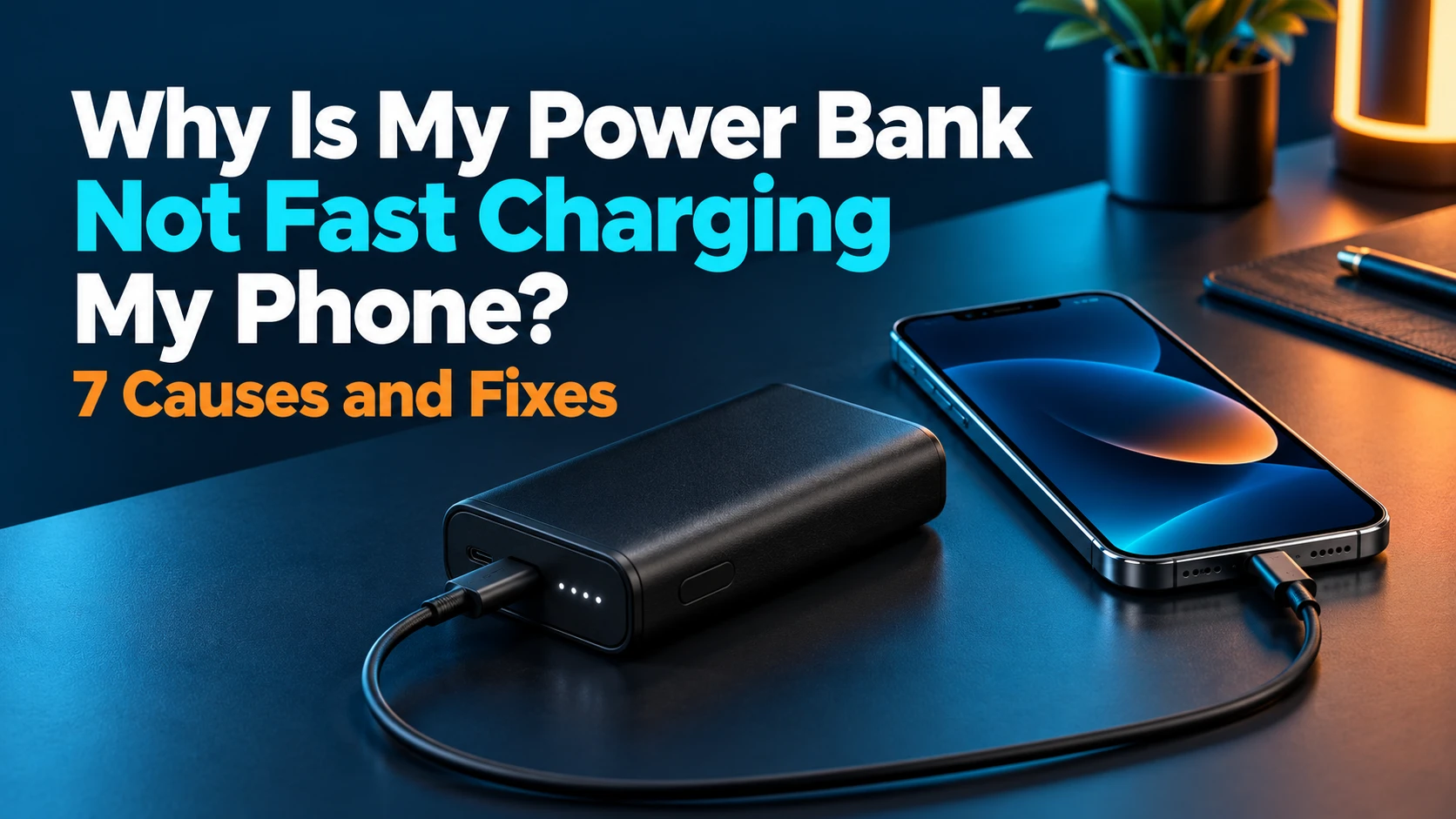
Why Is My Power Bank Not Fast Charging My Phone? 7 Causes and Fixes
A fast power bank still needs the right phone, cable, and port.
A power bank not fast charging your phone does not automatically mean its battery is failing. The phone and bank need compatible output capabilities, and the cable must support the connection. Start with one phone on the documented output port, then check the phone’s charging status before changing accessories.
Quick answer: why is my power bank not fast charging my phone?
Check these seven possibilities: a charging-standard mismatch, an unsuitable cable, the wrong port, shared output, phone settings, temperature or heavy use, and battery-level limits. Compare the exact phone model’s requirements with the bank’s output specifications. A large capacity number or total-wattage headline does not establish the speed available to your phone.
Affiliate disclosure: As an Amazon Associate, MultiChargers earns from qualifying purchases. Amazon links below contain our affiliate tag. This is a research-based troubleshooting guide, not a claim that we measured every phone, power bank, or cable.
Need a bank that matches your phone?
Before shopping, find the charging standard and output requirements for your exact phone. Compare those with the power bank’s documented USB-C output, including PPS where your phone needs it. Confirm compatibility in the manufacturer’s documentation rather than relying only on a marketplace title.
Compare USB-C PD/PPS power banks on AmazonFirst, separate three different charging problems
This article is about a bank supplying power to a phone more slowly than expected. If the bank itself takes too long to refill from a wall charger, use our guide to slow power bank recharging. Those are opposite directions of power flow, and they can involve different ports and specifications.
If charging repeatedly disconnects or never starts, begin with connection troubleshooting rather than a speed comparison. Our guide to a power bank that keeps turning off covers that separate symptom. A phone showing a charging icon is also not proof that the highest supported mode is active.
Write down what you actually observe: the phone’s model, bank model, port used, cable, starting phone percentage, bank charge level, connected accessories, and any status message. A statement such as “slow since yesterday” is harder to investigate than a repeatable description. This small record will also be useful if you contact the manufacturer.
Seven causes of a power bank not fast charging
| Possible cause | What to check | First practical action |
|---|---|---|
| 1. Compatibility mismatch | Phone requirements and bank output standards. | Compare the exact model documentation. |
| 2. Cable limitation | Connector type, documented rating, and condition. | Try a known-compatible cable. |
| 3. Wrong port | Input versus output and individual port limits. | Use the documented phone-charging output. |
| 4. Shared output | Other connected devices and pass-through use. | Compare with only the phone connected. |
| 5. Phone settings | Supported charging controls and status messages. | Review the phone’s battery settings. |
| 6. Heat or heavy use | Environment, demanding apps, and temperature alerts. | Pause demanding use and follow cooling guidance. |
| 7. Battery-level behavior | Phone percentage and bank’s documented limits. | Compare similar starting conditions. |
1. The phone and power bank do not support the same fast-charging mode
USB-C describes a connector, while USB Power Delivery describes a power-delivery system. The USB-IF’s explanation of USB Power Delivery describes flexible power management that lets devices take the power they require. A physically matching connector does not establish every optional charging capability implemented by the two products.
Look for the phone manufacturer’s charging instructions and the bank’s output section. Identify whether the expected mode requires USB PD, Programmable Power Supply (PPS), another documented feature, or a particular accessory combination. Then compare the actual output profiles. A “65W” label alone does not tell you whether the bank offers the mode your phone is requesting.
For example, Google’s Pixel charging guidance lists PPS adapters rated at 30W or more and other PD adapters rated at 15W or more among its supported options. Those categories do not mean every Pixel has the same maximum speed. Google directs readers to the battery-and-charging specifications for their model.
Apple’s fast-charge instructions also vary by iPhone generation and connection. Use that model-specific guidance to choose the correct cable and supported power source. Manufacturer wall-adapter charge-time claims should not be presented as measured results for an untested power bank.
The practical fix is to establish compatibility before purchasing extra wattage. If the manufacturer cannot confirm the desired mode, ask about the exact bank and phone pairing. Save the reply with your model information. It is much easier to make a useful replacement choice when you know which capability was missing.
2. The cable is unsuitable, damaged, or not the cable you think it is
A collection of similar-looking cables can make this confusing. Identify the cable by its packaging or manufacturer’s specifications rather than its thickness, color, or braided finish. Check both ends and use the connector combination recommended for the phone. Avoid adding adapters or extension pieces during your first comparison because they introduce more variables.
Samsung’s Galaxy fast-charging troubleshooting guide emphasizes compatible, undamaged accessories. Its current guidance calls for a 5A USB-C cable for its listed Super Fast Charging 2.0 configurations. Check your particular Galaxy model and supported mode; do not assume every phone requires that cable rating for ordinary charging.
Try a cable already known to work with the same phone’s supported fast charger. Keep the bank, port, and phone conditions unchanged for that comparison. If the behavior improves, repeat once with the original cable only if it is intact and safe to use. That result helps isolate an accessory issue, although it does not certify the original cable’s electrical condition.
If a connector is damaged, unusually hot, or visibly loose, stop using that accessory and seek appropriate support. Do not keep bending the cable until charging happens. For more background on cable identification, read what an e-marked USB-C cable does.
Replace a mismatched cable with a documented one
Choose the connector combination and rating required by your phone and power source. Check the manufacturer’s specifications and the actual supplied cable. A high cable wattage rating describes capability; it does not make the phone request more power or add a missing charging standard to the bank.
Compare documented USB-C charging cables on Amazon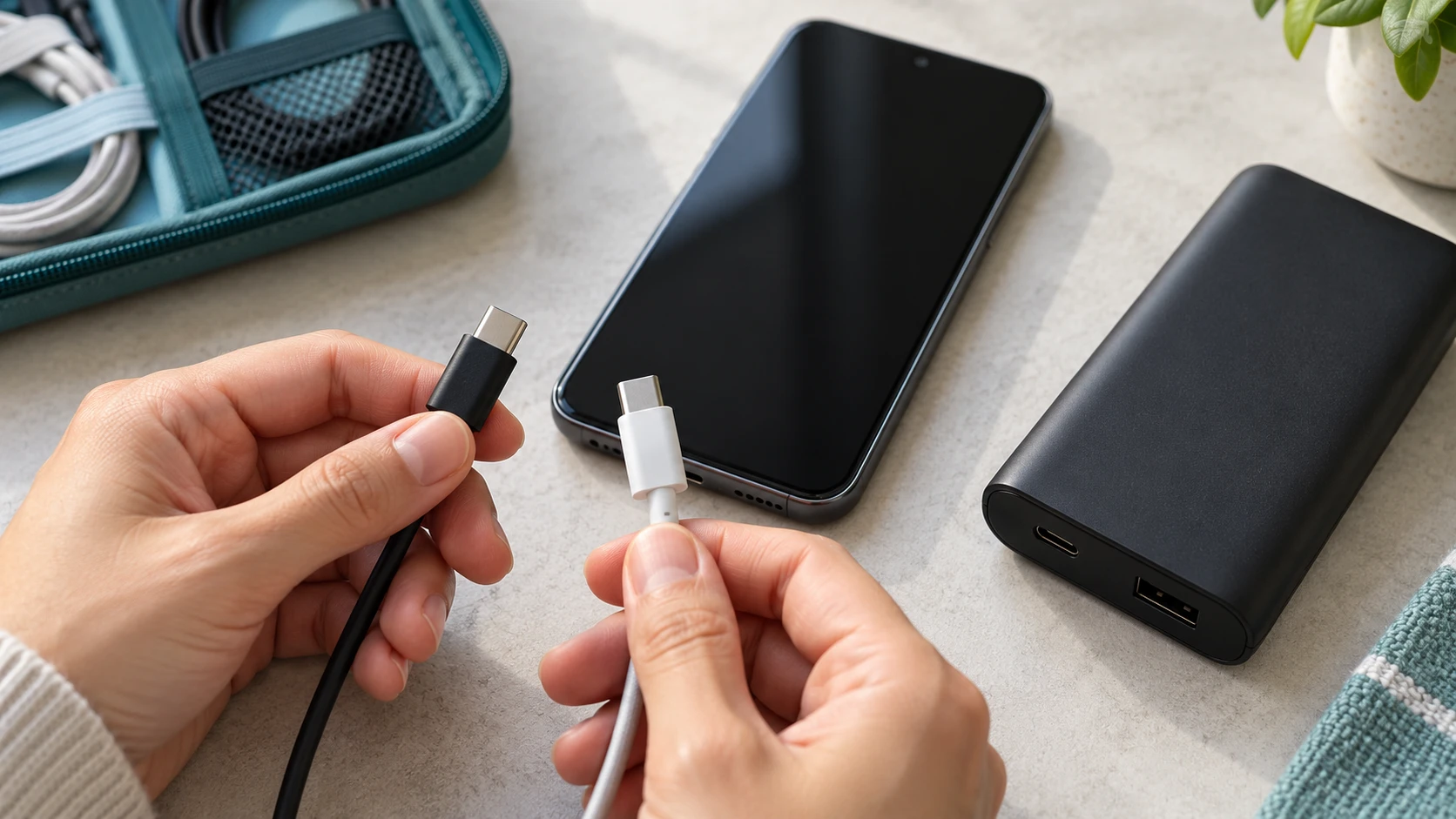
3. You are using the wrong output port
Read the port markings and the manual. A bank can have ports with different functions and different limits. Some USB-C ports support input and output, while others may have a narrower role. The number printed on the front of the product can describe a total or a specific operating configuration rather than every socket.
Make a small port map for your own bank: port name, input or output role, single-port capability, and the restrictions listed in the manual. Use the exact labels, such as C1 or C2, when available. “The port on the left” can become ambiguous as soon as you rotate the device or another person uses it.
If the manufacturer’s instructions identify a preferred port for your phone’s charging mode, connect there with the appropriate cable. Do not assume a USB-A connection will reproduce the behavior of a compatible USB-C PD connection. Apple and Google both identify USB-C charging arrangements in their faster wired charging guidance.
When one port consistently behaves differently, check whether that difference is documented. It may be a specification difference rather than a fault. If equivalent output ports behave differently under comparable conditions, describe the result to support before concluding that the entire power bank needs replacing.
4. Another device or pass-through charging changes the available output
Disconnect the laptop, tablet, earbuds, and other accessories from the bank for a comparison with one phone. Also disconnect the bank’s own charging input so you are comparing ordinary battery output. Do this only with intact equipment and according to the manual. The purpose is to remove variables, not to create a special stress test.
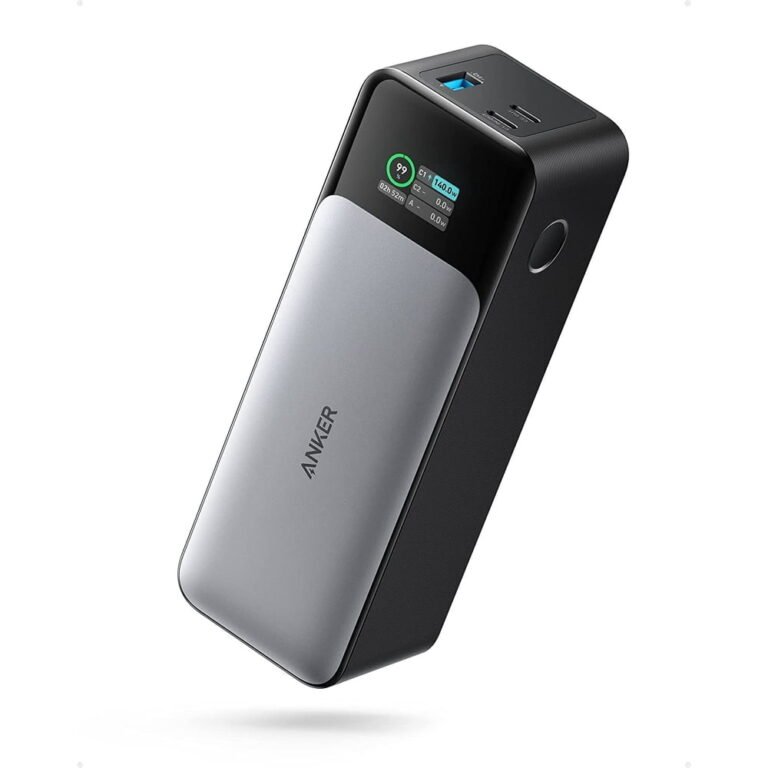
The Anker 25K 165W power-distribution guide illustrates why total output and individual-port output must be separated. It documents different allocations for different combinations of connected ports and notes a bank-charge condition for its listed performance. Those specifications belong to that model; they are not a universal power-sharing table.
If the phone’s behavior improves when it is the only device connected, restore the other connections one at a time and compare the result with the manual. Record the combination that changes the behavior. This gives you a practical basis for choosing which device to charge first or whether a separate power source would suit your routine.
Pass-through charging is another configuration with its own limitations. Support for charging a bank while it supplies a device does not guarantee the same output as ordinary battery operation. Read our guide to pass-through charging and power bank care before using it as a permanent arrangement.
5. Phone settings or status messages explain the difference
Check the battery settings on the phone rather than relying on one brief animation. Samsung explains that supported fast-charging options appear under its charging settings, with availability determined by the device. Menu names can vary by model and software. Follow the instructions for your version instead of assuming an older screenshot matches your phone.
Apple explains that a Slow Charger message can indicate that a more capable charger could improve the experience; the message does not automatically mean the phone or charger is faulty. Read the full message and battery information before treating it as a hardware diagnosis. A charging pause or an incompatible-accessory warning is a different observation.
Write down the exact message and when it appeared. Did it show only after connecting a second device? Did it occur with two different cables? Does it also appear with your normally successful wall charger? These comparisons make the status information useful without requiring a hidden diagnostic menu or an app claiming to unlock charging speed.
Keep battery-protection preferences in view when interpreting the result. Do not disable every protection feature just to make a display look faster. If you want to adjust a user-controlled setting, understand its purpose and follow the manufacturer’s instructions. Changing several settings at once makes it harder to identify what affected the session.
6. Heat and heavy phone use are slowing the session
Apple notes that processor-intensive activities and high-quality video can reduce charging speed, and that extreme temperature conditions can pause charging. For a comparison, pause demanding activity, let the phone rest, and use a suitable environment. Compare with the screen mostly off instead of running a game while watching the percentage.
Follow both devices’ environmental guidance. Anker’s Power Bank Safety Guide recommends a cool, dry, ventilated charging area and avoiding direct sun, hot parked cars, and covered operation. A bank buried inside a bag is a poor setup for observing a troubleshooting session.
If the phone displays a temperature warning, stop the speed comparison and follow its cooling instructions. Do not improvise with ice, a freezer, or liquids. Ordinary warmth alone cannot establish a fault, but it also should not be used to dismiss an explicit warning. Our article on power bank heat while charging discusses that separate concern.
Stop using equipment with swelling, damage, leakage, unusual odor, or other signs of failure. Do not continue comparisons to collect a faster result. For smoke, fire, or an immediate hazard, move away and contact emergency services. A troubleshooting routine should end when the equipment’s condition raises a safety concern.
7. The phone or bank battery level changes what you should expect
Do not compare the last few percent of one charging session with the early part of another. Apple’s battery-maintenance guidance explains that iPhone gradually reduces charging current as it approaches full charge. A lower reading late in the session can be normal rather than evidence that a fast-charging mode disappeared.
The bank’s remaining charge can also matter where its manufacturer documents output restrictions. Review those conditions before comparing a nearly empty bank with a freshly charged one. There is no percentage threshold that should be applied to every model. The relevant number is the one supplied in your bank’s own instructions.
For a fair everyday comparison, use roughly similar starting phone levels and record the bank’s displayed level. You do not need to drain either device completely. If you are checking a previous complaint, repeat the arrangement under ordinary conditions rather than deliberately pushing the battery to an extreme.
If performance has changed over time despite the same accessories and comparable conditions, support may need to inspect the equipment. Our guide to power bank lifespan and replacement signs provides context. Age alone does not identify which part of a charging setup caused a specific speed complaint.
A practical comparison before buying replacement equipment
Use this sequence as an organizational workflow, not a laboratory certification. First inspect the equipment and confirm the documented pairing. Then try one phone, one known-compatible cable, and the appropriate bank output. Record the status message and starting conditions. If there is a problem, change one item at a time.
- Document the baseline. Note the models, port, cable, phone percentage, bank level, and message.
- Compare the cable. Use a known-compatible replacement while keeping the other conditions similar.
- Compare the source. Try the phone’s normally successful compatible wall charger with the same suitable cable.
- Review the result. If both sources behave similarly, investigate phone conditions and settings. If only the bank differs, review its capabilities and configuration.
- Contact support if needed. Provide the exact arrangement and observations rather than a claimed maximum wattage alone.
Read a power bank display or USB meter carefully if you already use one. Its output reading is not automatically the power entering the phone’s battery, and a single moment does not describe a full session. A meter also adds a component to the connection. Avoid buying measurement equipment solely to confirm a charging animation.
Choose the replacement that addresses the confirmed limitation
For charging a phone alongside other devices
Compare multi-port banks with a clear output-allocation table. Check what remains available to your phone when the other ports are occupied. A higher total can be useful only when the documented port combination supports your needs; it does not promise each device the headline wattage.
Compare multi-port power banks on AmazonKeep the purchasing decision specific. Replace a damaged cable with an appropriate cable. Replace a bank missing the required charging mode with one that documents that mode. If heat, phone settings, or normal late-session behavior explains the result, buying a larger bank may leave the original complaint unchanged.
Frequently asked questions
Why is my 65W power bank not fast charging my phone?
The 65W label does not establish your phone’s supported mode or the power available from the port you are using. Check the protocol, output profiles, cable, port combination, and phone conditions before assuming a fault.
Does a USB-C port guarantee fast charging?
No. Confirm the documented output capabilities and the phone’s requirements. Matching connectors make a physical connection possible, but they do not establish every charging feature implemented by the devices.
Will a higher-rated cable make my phone charge faster?
It can address a cable limitation when its documented capability is required by your setup. It cannot add a missing protocol to the bank or make the phone exceed its own supported charging behavior.
Why does charging slow down near full battery?
Charging behavior changes during a session. Apple documents reduced current as iPhone approaches full charge. Compare similar battery levels before concluding that the power bank has stopped working correctly.
Why is charging slower with two devices connected?
Some banks change output allocation when more ports are used. Compare your arrangement with the manufacturer’s power-sharing table, then check whether the phone behaves differently when it is the only connected device.
Does a Slow Charger message mean my power bank is broken?
Not necessarily. Apple says that this message can indicate that a more capable charger would improve the experience. Check the connection and supported charging capabilities, and distinguish it from a pause or incompatibility warning.
When should I stop troubleshooting and contact support?
Stop immediately for damage or signs of battery failure. For an intact setup, contact support when the documented combination still behaves unexpectedly after simple comparisons with known-compatible equipment. Provide the models, port, cable, conditions, and exact message.
Your next step
When a power bank is not fast charging, begin by matching the phone’s requirements to the documented output and cable. Compare one device at a time and keep the conditions similar. That approach turns a vague speed complaint into a useful compatibility, accessory, configuration, or support decision.

Charging technology researcher at MultiChargers. This article reviews official manufacturer guidance and practical troubleshooting choices. It does not claim hands-on testing of every model. Reviewed October 3, 2026.
Sources: USB-IF USB Power Delivery; Apple fast-charge requirements; Apple charging-speed guidance; Apple battery maintenance; Samsung troubleshooting; Samsung charging settings; Google Pixel charging; Anker’s output-allocation and safety guidance linked above.