Can You Charge a Laptop With a Phone Charger?
As an Amazon Associate, MultiChargers earns from qualifying purchases. We have not independently tested this product for this article. Price, availability, and specifications may change.
Can You Charge a Laptop With a Phone Charger?
Yes, sometimes. The connector alone cannot tell you whether a small adapter can supply the power your laptop needs. Here is how to check compatibility, charging speed, and safety before you plug in.
By Daniel Carter · Research-led guide · September 2026You can charge a laptop with a phone charger if the laptop accepts power through that USB-C port and the charger offers a power mode it supports. A low-watt phone adapter may charge only while the laptop sleeps or is turned off, show a “Slow Charger” warning, maintain the battery level, or fail to charge. Apple explicitly allows higher- or lower-watt USB-C adapters for compatible Macs, while recommending enough power for normal use. Other laptops vary. Check your exact model’s charging specification, the adapter’s USB Power Delivery output, and the cable rating.
A phone brick is tempting when you forget your laptop adapter, travel light, or want one charger for both devices. The result depends on several independent conditions. A connector can fit yet deliver too little power. A charger can advertise an impressive maximum yet lack a mode your computer accepts. A multi-port adapter can reduce the laptop port’s allowance when a phone is attached. The practical goal is to identify what works for your device and whether it meets your workload.
Confirm that your laptop supports USB-C charging
Look up the charging instructions for your exact laptop model. Many current notebooks charge through USB-C, USB4, or Thunderbolt ports, but a USB-C-shaped port does not universally accept power input. Some ports are intended for data or video only. A computer may have one charging-capable socket and another without charging input, or it may require its dedicated power connector. The laptop manual, port symbols, and manufacturer support page are more reliable than the connector shape.
Mac laptops that use USB-C for charging can accept a USB-C power adapter or compatible display, according to Apple. Windows machines vary by model and by port. Microsoft advises connecting a charger to the USB-C charging port on the PC when troubleshooting slow charging. If the official instructions require a proprietary connector, do not assume an ordinary phone cable and USB-C adapter will bypass that requirement.
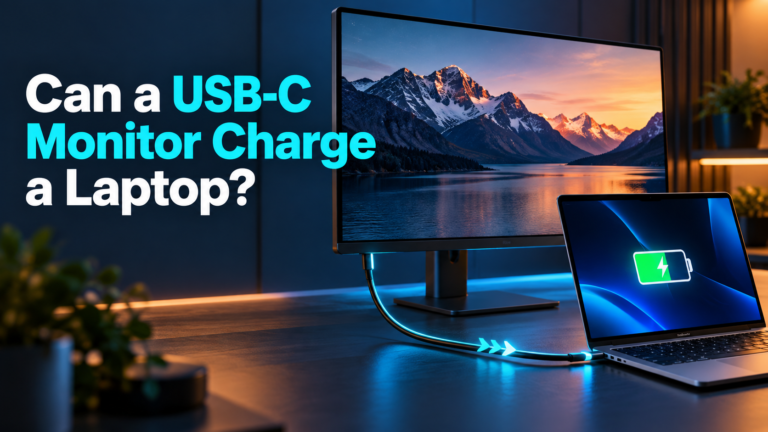
If your laptop has a USB-C port but does not respond to the charger, try the specified charging port and consult its manual before changing hardware. A hub or dock can also reduce the power reaching the computer. Test a direct connection first.
Read the phone charger’s output label
Find the small print headed “Output.” The advertised total wattage is not enough. Check the listed USB-C modes, expressed as voltage and current, and whether USB Power Delivery (USB PD) is supported. For example, 5V × 3A is 15W; 9V × 2.22A is about 20W. The laptop may need a higher-voltage PD mode and may not accept the adapter’s available combination. Do not infer laptop compatibility solely from a “fast charging” badge intended for phones.
USB PD lets compatible source and sink devices negotiate supported power. USB-IF describes Power Delivery as a system for substantially higher power through USB-C, including laptop charging use cases. A charger will not force its maximum printed output into the laptop; the negotiated capability and the laptop’s own controls matter. That is why a higher-rated compatible adapter does not automatically damage a computer, while a lower-rated one can be inadequate for the workload.
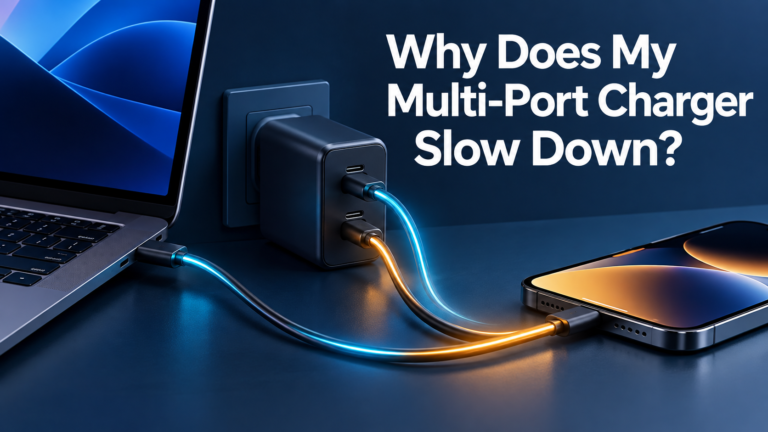
Some phone chargers use proprietary fast-charge systems and provide modest power to devices that do not speak that specific protocol. A 65W claim for a particular phone does not promise 65W USB PD to any laptop. Check the actual PD output specifications. For a multi-port model, read the simultaneous-output chart: the laptop’s port can drop from its one-port maximum when a phone occupies another socket. Our power-sharing guide explains that behavior in detail.
Compare the available watts with your laptop’s needs
Find the wattage on the original power adapter or the manufacturer’s charging specification. Treat it as a useful reference, not a claim that the laptop draws that exact amount every second. The computer uses some incoming power to run the screen, processor, storage, and attached devices, while the rest may charge the battery. Usage changes by the minute. Under a heavy workload, a small charger may be unable to increase battery percentage even while the charging icon is visible.
Apple says a USB-C Mac can use an adapter with more or less wattage than the recommended one, and its charging guidance notes that insufficient delivered power can trigger “Slow Charger.” Microsoft likewise documents slow charging or discharging while plugged in when a charger or cable does not meet a PC’s power requirements. The exact threshold is device-specific, so avoid universal rules such as “every laptop needs 65W.” A lightweight notebook may behave differently from a workstation or gaming machine.
| Phone charger output | What might happen on a compatible laptop | Best use |
|---|---|---|
| About 15W–20W USB PD | Possible slow charging while off or asleep; under use it may maintain or lose battery, or refuse input. | Emergency test only, if the laptop accepts the mode. |
| About 30W USB PD | May work for some low-power notebooks, often with slower charging under load. | Light work or overnight charging after checking the model. |
| About 45W–65W USB PD | Useful for many USB-C laptops, but not guaranteed for demanding models or fast-charge targets. | Match against the maker’s recommended wattage. |
| Higher-output USB PD | May support larger laptops if the port, cable, and required PD modes align. | Check exact model, output chart, and cable requirement. |
These are planning examples, not compatibility promises. A laptop may decline a lower-power source altogether. Charging speed also changes with battery level, temperature, power settings, and workload. If you need dependable charging during work, use an adapter that meets the laptop maker’s guidance.

Check the USB-C cable
The cable must support the power mode you intend to use. For a modest adapter, a sound USB-C cable with the right connectors may be sufficient. For higher-power laptop charging, verify the cable’s documented power rating; an electronically marked cable can be required for certain higher-current or extended-power modes. The USB-C form factor alone does not identify that rating. Avoid frayed, loose, discolored, counterfeit, or unusually hot cables.
A USB-A-to-USB-C phone lead is especially unlikely to reproduce the charging behavior of a USB-C PD laptop adapter. USB-A output and its supported protocols differ. Plug the USB-C charger directly into the laptop with a suitable USB-C-to-USB-C cable. Our e-marked cable guide and 60W versus 240W cable comparison help you choose a cable for higher-power setups.
Do not interpret a USB-C cable’s 240W marking as a promise that your phone charger supplies 240W or that the laptop can receive it. The effective combination is limited by the charger, negotiated protocol, cable, port, and device.
Test the charger safely and interpret the result
Start with the laptop idle, the battery below full, and a direct wall connection. Plug the verified USB-C cable into the laptop’s charging-capable port. Wait for the charging indicator, then inspect the system’s battery or power message. “Slow Charger” or “weak charging” is useful feedback. It does not by itself prove that the adapter is defective; the available input may simply fall short of the computer’s preferred power level.
If charging appears slow, close demanding apps and lower screen brightness. Let the laptop sleep or shut down, then compare battery percentage after an interval. A small input that cannot overcome active power use may still add charge while the computer is off. Keep the adapter uncovered and ventilated. Unplug it if the cable or charger is damaged, sparks, smells burnt, or becomes abnormally hot. Do not use a visibly unsafe adapter for an overnight experiment.
Make one change at a time: try a known-good cable, the designated charging port, a direct connection without a dock, and the adapter’s highest-output USB-C port. A full battery, thermal limits, or battery-care settings can mask a charging comparison. Check a similar starting battery level when evaluating two adapters.
Sponsored recommendation
Anker Prime 160W 3-Port USB-C Charger
For readers who want one compact adapter for a laptop and phone, Anker lists three USB-C ports, 160W combined capacity, and high single-port output for this model. It is a more suitable class of charger to investigate than a small 20W phone brick when a laptop needs substantial power. Compatibility is still model-specific: check Anker’s current power-allocation chart, your laptop’s USB-C PD requirements, and the cable rating before buying.
Check Anker Prime on Amazon →When should you use a proper laptop charger?
Use the laptop’s supplied or officially recommended power solution for reliable daily work, fast charging, and demanding use. A small phone adapter is most useful as an occasional backup after compatibility is confirmed. A laptop that draws more power than the adapter can supply may lose battery while plugged in, causing an unexpected shutdown during a call, export, or trip. That does not mean the charger is pushing harmful power; it means the available input is insufficient for the current load.
Some computers also have power policies that limit performance or show a warning with an undersized adapter. A gaming notebook with a proprietary high-power brick may accept USB-C only as a lower-power travel option, or not at all. The reverse can also occur: a modest laptop may work comfortably with a compact USB-C adapter. Read the computer maker’s documentation rather than applying a rule from another model.
For a single charger serving both devices, check the laptop’s needs while the phone is also connected. A 100W total label could describe a different two-port split from the single-port maximum. Our multi-port charger buying guide and wattage guide walk through that decision.
Common mistakes to avoid
- Assuming any USB-C port charges the laptop. Confirm input support for the specific port and model.
- Reading only the largest wattage on the box. Look at USB PD output modes and the active-port split.
- Using a weak or damaged cable. The cable is part of the power path and must suit the requested mode.
- Equating a charging icon with fast charging. The battery can gain slowly or even fall while a busy laptop is plugged in.
- Expecting proprietary phone fast charging to transfer to a laptop. Verify standardized output modes and device compatibility.
- Assuming an adapter that is physically small is unsafe. Physical size does not decide compatibility; documented electrical specifications, build quality, and safety matter.
- Ignoring a warning or a hot connector. A slow-charge notice calls for a specification check; physical damage or burning odor calls for immediate disconnection.
Frequently asked questions
Will a 20W phone charger charge my laptop?
Some USB-C laptops may accept the adapter’s available USB PD mode and charge very slowly while asleep or powered off. Others reject it. Under active use the battery may continue to drain. Check the laptop manual and the charger’s output label.
Can a phone charger damage a laptop battery?
A reputable compatible USB-C PD charger negotiates power with the device. Lower wattage usually means less usable power or no charging, not forced overcharging. Damaged, counterfeit, or poorly made electrical equipment is a separate safety concern. Follow the manufacturer’s guidance.
Can I use a 65W phone charger for a laptop?
Possibly, if its USB-C PD output modes, your cable, and the laptop’s charging input requirements match. A proprietary 65W phone-only fast-charge claim does not guarantee 65W PD output to a laptop.
Why does the battery go down while plugged in?
The laptop may be consuming more power than the small charger can deliver. A dock, other devices, or a multi-port split can further limit power. Test the direct connection with the laptop idle, then compare against the manufacturer-recommended adapter.
Is a higher-watt charger safe for a low-power laptop?
With compatible USB-C PD equipment, the device and charger negotiate a supported mode rather than automatically applying the charger’s full advertised rating. Verify that the power source meets the laptop maker’s specifications and use a suitable cable.
Does charging while the laptop is off help?
It can. An off or sleeping laptop usually consumes less power, leaving more of a limited input available for battery charging. The computer still has to accept the charger’s supported power mode.
The practical answer
A phone charger can be a useful laptop backup when the laptop supports USB-C charging and the adapter offers a compatible USB PD output. It is often slow because a phone-sized charger delivers less power than a laptop normally uses. Check the laptop model, the exact USB-C port, PD modes, simultaneous port allocation, and cable. Test under light load and heed the computer’s warning. For dependable daily charging, choose a properly specified laptop adapter or a well-documented multi-port charger.
Sources: Apple, using a power adapter with Mac; Apple, charging a Mac laptop; Microsoft, slow charging or discharging; USB-IF, USB Power Delivery; Anker, 160W charger specifications. Examples are illustrative; no independent charge-speed tests are claimed.