
USB-C Charging Cable vs Data Cable: How to Choose
Affiliate disclosure: As an Amazon Associate, MultiChargers earns from qualifying purchases. This guide uses documented specifications; it does not claim hands-on testing.
Match the cable to the job
Need power and basic syncing? A charging-focused cable may fit. Need a fast drive, dock or screen? Check the data and display requirements first.
Check Apple charging cable on AmazonQuick answer
A USB-C charging cable can also support data, but its power rating does not tell you its data speed or display capability. Check three separate specifications: charging watts, data rate and supported video or docking function. A cable advertised for fast charging may support only basic USB 2 data. A USB-C plug alone does not establish that it can run a monitor.
USB-C charging cable vs data cable: what the names mean
The labels charging cable and data cable describe a selling point, not a complete technical specification. Many charging-focused cables transfer files as well. Some cables marketed for data also carry substantial charging power. You cannot reliably divide every USB-C cable into two mutually exclusive groups by reading those short names.
Instead, identify the task you want the cable to perform. Connecting a wall charger to a laptop mainly calls for suitable charging capability. Copying a large video folder to an external drive adds a data-rate requirement. Connecting a dock or display adds the requirements documented for that accessory.
This guide addresses that selection problem. If you have already decided you need a laptop charging lead, our laptop charging cable shortlist compares specific options. Here, the priority is understanding what to check before choosing a cable category or replacing one that appears not to work.
| Job | What to verify | What does not prove support |
|---|---|---|
| Charge a phone or laptop | Device input, source output and cable power rating | Connector shape alone |
| Basic syncing | Documented data support and device mode | A fast-charging claim |
| Transfer large files quickly | Cable, device and port data rates | A 240W label |
| Connect a USB-C monitor | Required video path, cable and host support | Charging works through the cable |
| Connect a dock | Dock protocol and included-cable guidance | A generic USB-C compatibility statement |
1. Read charging power separately from data speed
Watts tell you about a cable’s supported charging range. They do not describe how quickly a photo library moves between devices. Mbps and Gbps describe a different capability. Treat a product listing with only one of those specifications as incomplete for a job that needs both.
Apple provides a clear example: its 2-meter 240W USB-C Charge Cable supports charging up to 240W and USB 2 data rates. That combination shows why a large power number should not be interpreted as a high-speed data promise. It can be suitable for charging and basic syncing without being the right purchase for a demanding storage workflow.
The same distinction applies in reverse. A high data-rate label does not establish every charging capability you might need. Check the power rating too, particularly if the same cable will connect a larger laptop to a dock. Buy against both requirements rather than assuming one premium feature includes all the others.
2. Check the devices at both ends
A capable cable cannot add a feature to a device or port that lacks it. If the computer’s selected connection does not support the required data rate or video function, changing only the cable may not solve the problem. Start with the manuals for the host and accessory.
A laptop may have several USB-C-shaped ports with different functions. Read the model-specific port diagram, and use the port recommended for the peripheral. A charging connection that works on one socket does not prove that every socket supports the same display or docking arrangement.
For charging, also check the power source. A cable does not generate energy or increase a charger’s output. The laptop, selected output port and cable must form a compatible path. Our charger wattage guide explains how to separate source capability from what the device actually accepts.
3. Do not assume a charge cable supports a monitor
A USB-C monitor connection can involve video, data and charging together, but all three functions still need support. A cable that replenishes the laptop battery may not support the monitor connection you are trying to make. A charging indicator is therefore insufficient evidence that the complete cable is suitable.
Use the display manufacturer’s connection instructions. Identify the required host capability and cable type, and start with the supplied cable when available. If you replace it for extra reach, match the documented functions rather than choosing a longer lead based only on its power rating.
Also confirm that the selected display socket is the intended upstream connection. A monitor may include other USB ports for peripherals. Their presence does not make them equivalent to its host input. Our USB-C monitor charging guide explains the separate power-delivery question.
4. Choose a data cable around the accessory’s needs
For a keyboard or occasional small-file transfer, the fastest advertised cable may not offer a practical benefit. For a compatible external SSD or another demanding accessory, the supported data path becomes more important. Use the accessory specification to define the purchase instead of buying the largest number you find.
The transfer result depends on more than the cable. Storage performance, the host port, the accessory controller and the type of files can all affect the experience. A maximum link-rate specification is not a guarantee that a real file copy will run at that number.
Check the entire route if there is a hub in the middle. A cable connected to the wrong hub port, a slower upstream link or another limiting component can reduce the available capability. Simplifying the connection is often more useful than replacing several cables without identifying where the limit occurs.
5. Understand cable labels without overreading them
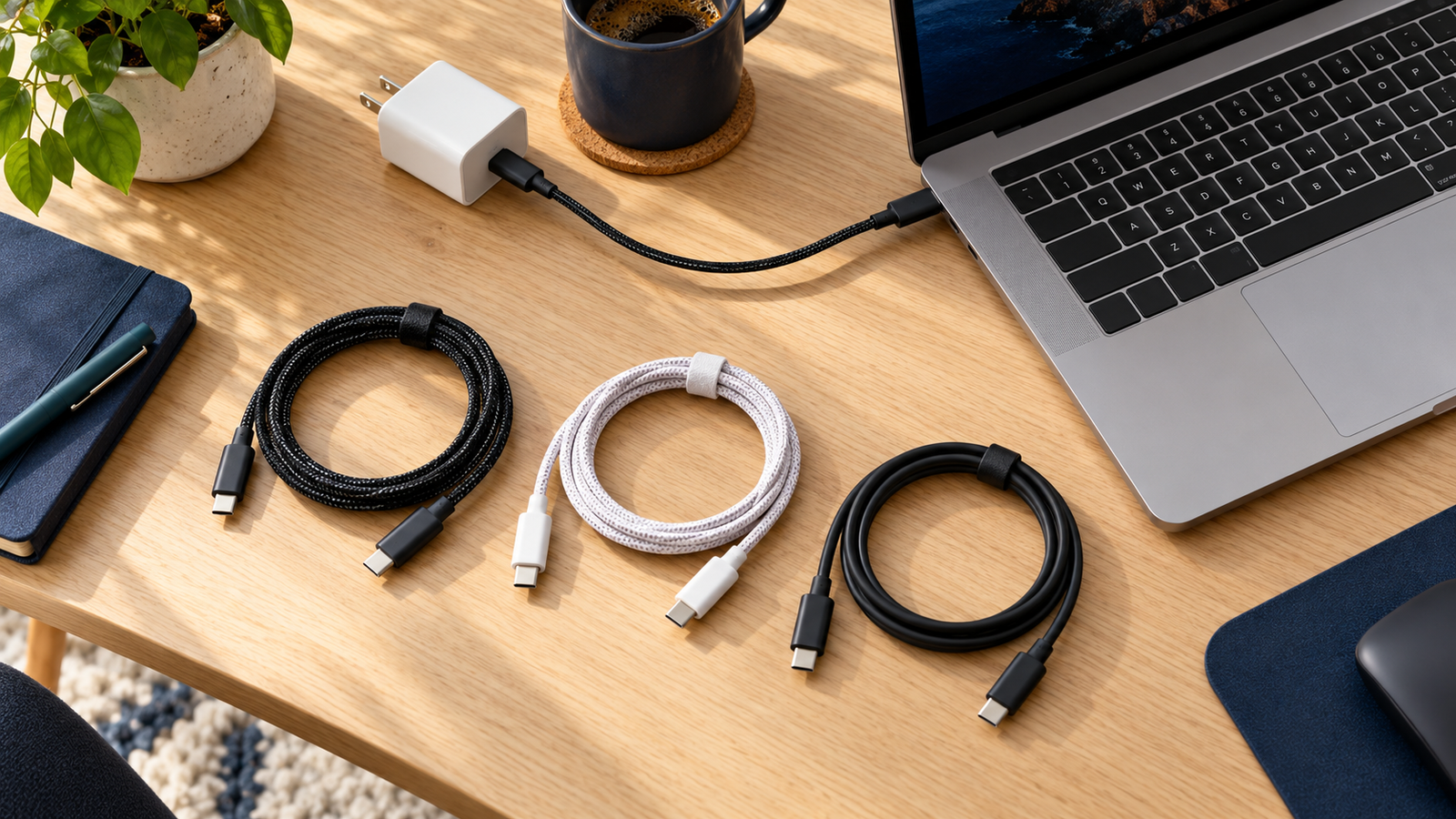
USB-IF treats power and data capability as separate information in its cable-labeling program. Current USB-C-to-USB-C certification requirements use power markings and, for applicable cable categories, data-rate markings. This helps explain why one number cannot communicate every cable function.
Inspect the cable, packaging and exact product page together. A logo is useful only when it belongs to the actual model and variant you are buying. Do not assume a generic marketplace photograph establishes certification or that every cable sold under a broad family name has identical specifications.
An older cable without a readable marking is not automatically defective. It may simply be difficult to identify. Look up the original order or model number before deciding what it supports. If you cannot establish its capabilities, keep it for a verified limited purpose instead of assuming it can handle an expensive workstation.

6. E-marking does not replace a full specification
An electronically marked cable contains identification information relevant to its supported operation. That can matter for higher-power charging. However, the statement e-marked is not a complete description of data speed, display support, length or protocol compatibility.
Read the complete manufacturer specification for the intended job. A buyer who only needs charging and a buyer connecting a high-speed dock may both encounter e-marked products, yet need different cables. Asking whether a cable is marked is useful; asking what it is documented to support is more useful.
Our e-marked USB-C cable guide explains the background. For a purchase decision, record the charging range and required data or display functions on the same checklist so one specification does not distract from the others.
7. When charging works but file transfer does not
First confirm the cable’s documented data capability. A marketing title that emphasizes charging is not enough to determine whether it supports your intended connection. Then check the device’s on-screen connection mode, any permission prompt and the operating system’s supported workflow.
Unlock a phone when its instructions require that, and follow the normal trust or file-transfer prompts. Do not assume that a missing file browser entry proves the cable has no data wiring. Device settings and permission choices can produce the same visible symptom.
Try a direct connection using a known working data cable and a supported host port. Keep the other variables unchanged. If that works, compare the original cable’s specification and condition. If it does not, investigate the device or host guidance before purchasing another accessory.
Inspect plugs and sockets for visible damage, and follow manufacturer cleaning guidance if necessary. Do not scrape contacts with metal tools or force a plug into place. Repeatedly bending a connector to establish data is a reason to stop and investigate, not a usable long-term workaround.
8. When charging works but a dock or display does not
Start with the dock or monitor’s supplied upstream cable. Confirm that it is connected to the documented host port and that the computer supports the required function. This gives you a reference setup before you introduce a replacement cable, extension or adapter.
Remove unnecessary intermediate accessories during diagnosis. A multi-step chain creates more compatibility questions than a direct connection. Once the basic setup works, add the desired components one at a time and check the accessory documentation for supported arrangements.
A working power connection is only one part of the result. Look separately for display output, attached storage and other expected peripherals. If the laptop is charging but the screen remains blank, do not try to solve that symptom by buying a cable with a larger wattage label.
Where a hub passes power through to a laptop, its charging allowance may also differ from the source adapter rating. See our USB-C hub pass-through charging explanation for that separate issue.
9. Length and handling still matter
Choose a length that fits the actual route without putting tension on a socket. Measure around a stand or desk edge rather than only in a straight line. A cable that barely reaches can pull on a device when you adjust its position.
For demanding data or display uses, verify that the exact length variant supports the required capability. Do not assume every longer version of a cable family is electrically identical. Use the listing for the selected model, not a headline specification from a different variant.
Braiding, jacket thickness and metal connector shells describe physical features. They do not independently prove charging power or transfer speed. Choose them for handling preferences after checking the electrical and functional requirements.
Keep cables clear of hinges, chair wheels and sharp furniture edges. Store them without tight bends at the plugs. If a lead becomes unreliable or visibly damaged, replace it with a documented suitable option rather than continuing to reposition it until it happens to work.
A charging-focused example: Apple 240W USB-C Charge Cable
Apple documents a 2-meter woven cable, up to 240W charging and USB 2 data rates. Compare it for a compatible charging setup with basic syncing. Choose a separately documented cable if your job requires faster data or a particular dock or display function.
Check Apple charging cable on AmazonCheck the selected length, model, seller and package. This is a specification-based example, not a measured performance award.
Should you replace the cable you already own?
Keep a working cable when its documented capabilities meet the task. A higher power rating will not necessarily improve charging, and a faster data cable will not make a charger more powerful. Identify a real limitation before buying a replacement.
Replace or repurpose a cable when it lacks a required function, cannot be identified reliably for the job, or shows damage. The goal is a dependable connection with suitable specifications. Paying for extra capabilities is sensible when you plan to use them, not simply because a cable has premium branding.
If you need a separate charging lead and dock cable, label or store them by purpose. A pouch marked charging and another marked dock can prevent repeated confusion. Keep the product details or original packaging so that the next troubleshooting session starts with known specifications.
For a charging-only purchase, compare our 60W versus 240W cable guide. For a dock or external drive, make the accessory manual your starting point and check power as an additional requirement.
A practical buying checklist
Write down the two devices, the selected ports and the functions you need. Record charging power, required data rate, display requirements and usable length separately. This turns a vague search for a good USB-C cable into a specific purchase.
Check the exact variant in the cart. Similar product names can cover different lengths, quantities and capabilities. Confirm seller information and return terms, and avoid treating a product photo or customer comment as a replacement for written specifications.
When the cable arrives, inspect it and verify the intended direct connection first. Test the function you bought it for: charging, file transfer, display or docking. A successful check of one function does not verify all the others. Keep purchase details until the complete intended setup is working.
Frequently asked questions
Can a USB-C charging cable transfer data?
Often yes, but check the documented data specification. Charging-focused cables can support basic syncing while offering less data capability than a cable designed for fast storage.
Does 240W mean fast file transfer?
No. Charging watts and data rate describe different capabilities. Read both specifications.
Can I identify cable capability from its appearance?
Not reliably. Similar plugs, braiding and thickness do not establish the complete specification. Use model information and documented markings.
Does an e-marked cable always support a monitor?
No. E-marking alone is not a display-support claim. Match the monitor, computer port and cable requirements.
Why does my phone charge but not appear on the computer?
Check cable data support, the phone’s connection mode and permission prompts, and the host port. Try a known working direct connection before buying a replacement.
Do I need the most expensive USB-C cable?
Choose the capabilities and length required by your setup. Extra features offer value only when they meet a real need.
Sources and editorial notes
References checked October 16, 2026: USB-IF cable capability and labeling guidance and Apple 240W USB-C Charge Cable specifications. Troubleshooting steps are practical guidance; device manuals determine supported operation. We have not measured transfer speeds or charging performance for this article.



2 Comments