

Why Is My Power Bank Charging My Laptop Slowly?
As an Amazon Associate, MultiChargers earns from qualifying purchases. Verify current manufacturer specifications and compatibility before ordering.
Why Is My Power Bank Charging My Laptop Slowly?
Find the limiting part of the power path before replacing the power bank. The laptop, USB-C port, cable, and workload all affect the result.
By Daniel Carter · September 2026
A laptop power bank often charges slowly because its single-port USB-C Power Delivery output is below the laptop’s preferred input, the bank and laptop cannot negotiate the needed power mode, the cable is unsuitable, or another connected device reduces the laptop port’s share. The laptop may also use most of the incoming power while you work. Check the exact bank output chart and laptop specification, then test a direct connection with one known-good cable and no other devices attached.
You plug a bank into your notebook, see a charging icon, and expect the battery percentage to climb. Instead, it barely moves or even falls. That observation does not automatically mean the bank is defective. A charging icon can mean the computer recognizes an external source while receiving less power than it needs for the current workload. Some computers display a specific slow-charger notice; others provide little explanation. This guide takes you through the checks in a useful order, from specifications to a controlled test.
Start with the difference between capacity and output
The capacity on a bank, often 10,000mAh or 20,000mAh, describes how much charge its cells store at a particular voltage. A watt-hour rating is a more useful expression of stored energy. Neither number tells you how many watts a USB-C port can deliver at one moment. A 20,000mAh bank designed for phones could offer only 20W or 30W output, while another model of similar capacity could offer 65W or more from one port. They can behave very differently with the same laptop.
The laptop’s original adapter is a starting reference. Read the label or the manufacturer’s model-specific support page. For example, an adapter marked 20V and 3.25A is rated 65W. That does not mean the laptop constantly consumes 65W, nor does it prove the machine accepts any lower-powered bank. During demanding work, however, a bank providing substantially less than the maker’s recommended level may struggle to increase battery charge. Our laptop power bank wattage guide explains how to choose a suitable output; the mAh versus Wh guide explains capacity.
Keep three ratings separate: the bank’s input is how quickly it recharges itself, its single-port output is the most it can offer through the laptop connection under specified conditions, and its combined output is the total budget across active ports. A product label might place its largest number beside input or total output. Read the detailed table before concluding that the laptop receives that amount.
1. Confirm that the laptop accepts power through this port
Not every USB-C-shaped socket on a laptop accepts charging input. Some handle data or video only. A laptop with several USB-C ports may have one designated charging port, while some models require a proprietary connector for normal operation. Check the exact model manual and symbols beside the ports. Microsoft lists connection to the wrong port among causes of a PC charging slowly or discharging while plugged in. If a computer supports a USB-C power input, connect directly to that port for the first test.
A hub or dock changes the path. It can retain some of the incoming power for itself and attached accessories. A bank connected to a hub and then to the computer may therefore deliver less to the computer than the bank’s label suggests. Remove the hub for diagnosis. If the laptop only accepts charging through a vendor-specific port, a generic passive adapter should not be assumed to make it compatible with a USB-C bank. Follow the laptop manufacturer’s approved charging methods.
For a Mac, Apple’s support guidance can display “Slow Charger” when the wattage delivered by the charging setup is too low for the Mac model. Windows may report slow charging or discharging while plugged in. These notices are clues about the entire setup, not automatic proof that the bank itself has failed. Confirm the port and cable first, then compare available power.
2. Read the power bank’s USB-C PD output modes
USB Power Delivery allows the source and device to negotiate a supported voltage and current. USB-IF describes this system as providing flexible power for devices with different needs. A bank’s advertised maximum does not guarantee that it offers the particular voltage/current combination the laptop requests. A bank may list several modes such as 5V, 9V, 15V, and 20V, each with its own current limit. Read the exact specification, including which physical port supplies each mode.
For illustration, 20V at 3A equals 60W. A label that offers 20V at only 2.25A supplies up to 45W in that mode, even if another headline refers to a higher combined total. The laptop may accept the smaller mode and charge slowly, reject it, or draw enough to power the system without increasing the battery. The outcome varies by model. Never infer a negotiated mode solely from the shape of the connector.
Some banks advertise very high proprietary fast charging for a specific phone but offer lower standardized USB PD output to a laptop. If a listing does not show USB PD and the output profiles, seek the manufacturer’s manual. A USB-A-to-USB-C cable also cannot generally reproduce a laptop’s USB-C PD charging path. Microsoft’s Surface guidance says a lower-wattage or USB-A charger can be slow or fail to charge, with model-specific recommended wattage important for normal performance.
| What you find | What it can mean | Next check |
|---|---|---|
| Bank has high mAh but 20W USB-C output | Large reserve, limited delivery rate. | Compare laptop input specification. |
| “100W total” with 45W laptop port in two-port mode | Power is shared when both devices connect. | Test laptop alone and inspect allocation chart. |
| Suitable watts, missing needed PD voltage | Devices may negotiate a lower mode or no charge. | Compare each output profile with laptop guidance. |
| Correct bank and port, low-rated cable | Cable can limit higher-power operation. | Try a verified, appropriately rated USB-C cable. |
| Correct setup but intensive work | System consumes much of the incoming energy. | Repeat while idle or asleep. |
3. Check what happens when another device is plugged in
Many laptop-capable banks have a shared power budget. If the laptop is alone, one USB-C port may have its advertised maximum. Add a phone, earbuds, or another computer, and the bank may redistribute output. The laptop port can fall below the level needed for normal work. Do not add the individual port maxima printed on a product page and assume the total is available simultaneously; those maxima may each describe a separate one-device condition.
Find the maker’s allocation table for exactly the port combination you use. Check the bank’s built-in cable separately if it has one. Some models also briefly disconnect and renegotiate power when a second device joins. A momentary restart differs from repeated disconnects. If the laptop repeatedly switches between charging and not charging, test the bank alone and inspect the cable, connector, temperature, and bank charge level. Our brief charging interruption guide explains renegotiation; the power-sharing guide covers reduced port output.
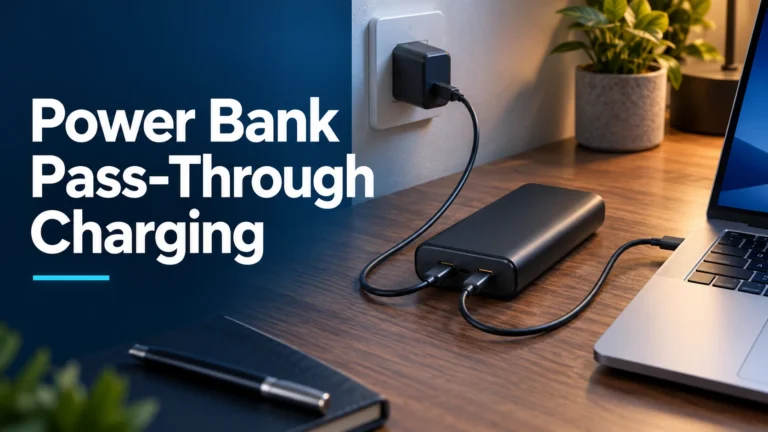
Some banks support pass-through use while they themselves charge from a wall adapter, but that does not establish that they can deliver their full published laptop output in that mode. Follow the exact product manual. For a clean test, unplug the bank’s own charging input and every secondary output. Check the bank battery indicator before measuring the laptop’s response.
4. Verify the cable, connector, and port condition
USB-C cables can look alike while differing in power capability. A cable sufficient for a phone or a 45W laptop setup should not automatically be used for a 100W or higher-power laptop connection. Check its documented power rating and the bank’s instructions. For higher-current or extended-power modes, a properly identified and rated cable may be required. Our e-marked cable guide and 60W versus 240W cable guide explain the distinction.
Try a known-good USB-C-to-USB-C cable rated for the intended power. Avoid an unverified adapter, extension, or hub for this test. A data-speed label alone does not prove a cable’s power rating. An integrated bank cable may have a different output specification from a separate USB-C socket, even though both are physically USB-C. Compare the maker’s charts rather than treating them interchangeably.
Inspect both ports for visible debris or damage. Do not insert a metal tool into a connector. If a cable wiggles, becomes unusually hot, disconnects with slight movement, or shows exposed wires, stop using it. Apple also advises checking that a cable supports charging when troubleshooting USB-C Mac adapters. A sound replacement cable is a less costly first experiment than immediately buying another bank.
5. Separate laptop power use from battery charging
A laptop can be plugged in and still lose battery percentage. The incoming power first supports system activity, and the amount left for the battery varies. A bright display, external monitor, video call, game, export, or software update can increase demand. A smaller bank may slow the decline without reversing it. When the laptop sleeps or shuts down, more of the input can become available for the battery. That is why the same bank can appear useless while editing video but add charge overnight.
Try a controlled comparison. Note the laptop battery percentage and whether the bank is full. Disconnect other devices, use the highest-rated USB-C output, and connect directly with a known-good cable. Let the laptop sit idle for a period; observe the system charging message and percentage. Repeat under your normal workload. Do not judge from one minute of display behavior, because battery estimates and charging rates can change. You need not drain either battery to zero.
Also consider the laptop battery’s own charge level and thermal controls. A computer approaching full charge can intentionally slow its battery charging; some devices pause at a chosen threshold for battery-health settings. A warm bank or laptop can reduce output. If the bank itself is nearly empty, its output may stop earlier than expected depending on its protections. Model-specific behavior belongs in the maker’s manual, not a universal wattage rule.
A ten-minute troubleshooting sequence
- Identify the exact devices. Find the laptop model, original adapter rating, and bank model on their labels.
- Confirm the charging port. Use the laptop’s designated USB-C power input and the bank’s highest-rated output, not a USB-A port.
- Remove other connections. Unplug phones, accessories, docks, and the bank’s own input.
- Use a suitable cable. Pick a verified USB-C-to-USB-C lead rated for the intended power.
- Read the output chart. Compare the bank’s single-port PD modes with the computer’s supported input and original supply.
- Test while idle. Note any “Slow Charger” warning and the battery trend after a reasonable interval.
- Test your usual workload. A decline only under load suggests an input-versus-consumption mismatch.
- Add the phone back. If charging worsens, use the simultaneous-output chart to explain the change.
- Try the original wall adapter. If the laptop also charges poorly there, investigate the computer, its port, battery settings, or a different cable.
Make only one change between comparisons. Swapping the bank, cable, port, workload, and starting battery percentage together cannot tell you which element mattered. A USB-C power meter can provide additional information for experienced users, but it is not required for this basic diagnosis. Do not assume a meter reading at one instant is the whole charging story.
What wattage should you look for if you need a replacement?
Start with your laptop manufacturer’s recommended USB-C input. Choose a bank whose single output port offers a compatible PD profile and sufficient wattage for the way you use the computer. Then look at its simultaneous-output chart if you will charge a phone at the same time. A 65W bank might be a sensible match for a laptop designed around a 65W USB-C adapter, but compatibility is not guaranteed by two equal wattage labels. A demanding laptop can require a higher-powered source or a proprietary adapter for full performance.
Capacity matters for how long the bank can help, not merely how fast. Compare its Wh rating with the laptop battery’s Wh rating and account for conversion losses and laptop operation. A higher-output bank with a small energy reserve could supply adequate power briefly; a large but low-output bank may last longer while still charging too slowly. See our 20,000mAh laptop compatibility guide for an illustrative capacity calculation.
Sponsored shopping link
Compare laptop-capable USB-C power banks
Filter candidates by the exact laptop model’s supported charging input, the bank’s single-port PD profiles, cable rating, Wh capacity, and two-port output chart. A “100W total” or “20K” headline alone cannot confirm fit. We have not measured a specific product for this article.
When slow charging is normal, and when to stop
A low-wattage but compatible bank may be an emergency top-up while the laptop sleeps. A “Slow Charger” notice can accurately describe that limitation. If your goal is several hours of active work, however, a bank that merely slows battery drain is not a dependable substitute for the recommended adapter. Use a bank matched to the laptop’s supported modes and required power.
Stop using a bank or cable with swelling, leaking, a burning smell, sparks, exposed wiring, or a connector that becomes abnormally hot. Keep the bank ventilated and follow its maker’s temperature and handling instructions. Do not attempt to open or repair a lithium-ion bank. If the setup is physically sound but performance remains poor, document the exact model numbers and conditions before contacting either manufacturer’s support.
Frequently asked questions
Why does my laptop say “Slow Charger” with a power bank?
The wattage delivered to the laptop may be below what the model prefers. Check the bank’s active USB-C port, PD output, cable, any hub, and other connected devices. Apple and Microsoft document low input as a cause of slow charging messages or a battery that falls while plugged in.
Why does the battery drain even though it says charging?
The computer may be using more power than the bank supplies. Test while idle or asleep, then compare with active use. Confirm that the connection is actually delivering a supported PD mode.
Does 20,000mAh mean fast laptop charging?
No. mAh describes capacity at a stated voltage, not the bank’s per-port watts. Read the USB-C output table and the Wh rating separately.
Can a 100W bank charge every USB-C laptop quickly?
No. The laptop must accept charging through that port and negotiate a supported mode. A 100W combined rating may also exceed the output of the one port or multi-device configuration you use.
Will a 240W cable speed up a 45W bank?
No. A higher-rated cable cannot make the bank or laptop offer a faster mode. It is useful only when the rest of the charging path supports and needs the higher power.
Why did charging slow when I connected my phone?
Many banks redistribute their shared output across ports. Consult the simultaneous-output chart for those exact ports and test the laptop by itself.
Bottom line
Slow laptop charging from a power bank is usually a mismatch somewhere in the power path: insufficient single-port output, unsuitable PD mode, a cable or port limitation, shared power, or high laptop consumption. Identify each component and test the laptop alone while idle before replacing anything. Choose a replacement using documented per-port modes and the computer maker’s model-specific requirements rather than capacity or total wattage alone.

Charging Technology Researcher at MultiChargers. Daniel translates manufacturer and USB specifications into practical compatibility checks for everyday charging setups.
- USB-IF: USB Charger (USB Power Delivery)
- Microsoft: PC charging slowly or discharging while plugged in
- Microsoft: USB-C and fast charging for Surface
- Apple: Charge your Mac laptop computer
- Apple: If your USB-C power adapter isn’t charging your Mac laptop
Illustrative wattage examples are calculations, not hands-on test results. Product behavior varies by model.

3 Comments