

Why Does a Multi-Port Charger Stop Charging Briefly When You Plug In Another Device?
Why Does a Multi-Port Charger Stop Charging Briefly When You Plug In Another Device?
A momentary pause can be part of power redistribution. Learn how to tell a normal port-change handshake from persistent cycling, a limited power budget, or a faulty connection.
By Daniel Carter · Research-led guide · September 2026
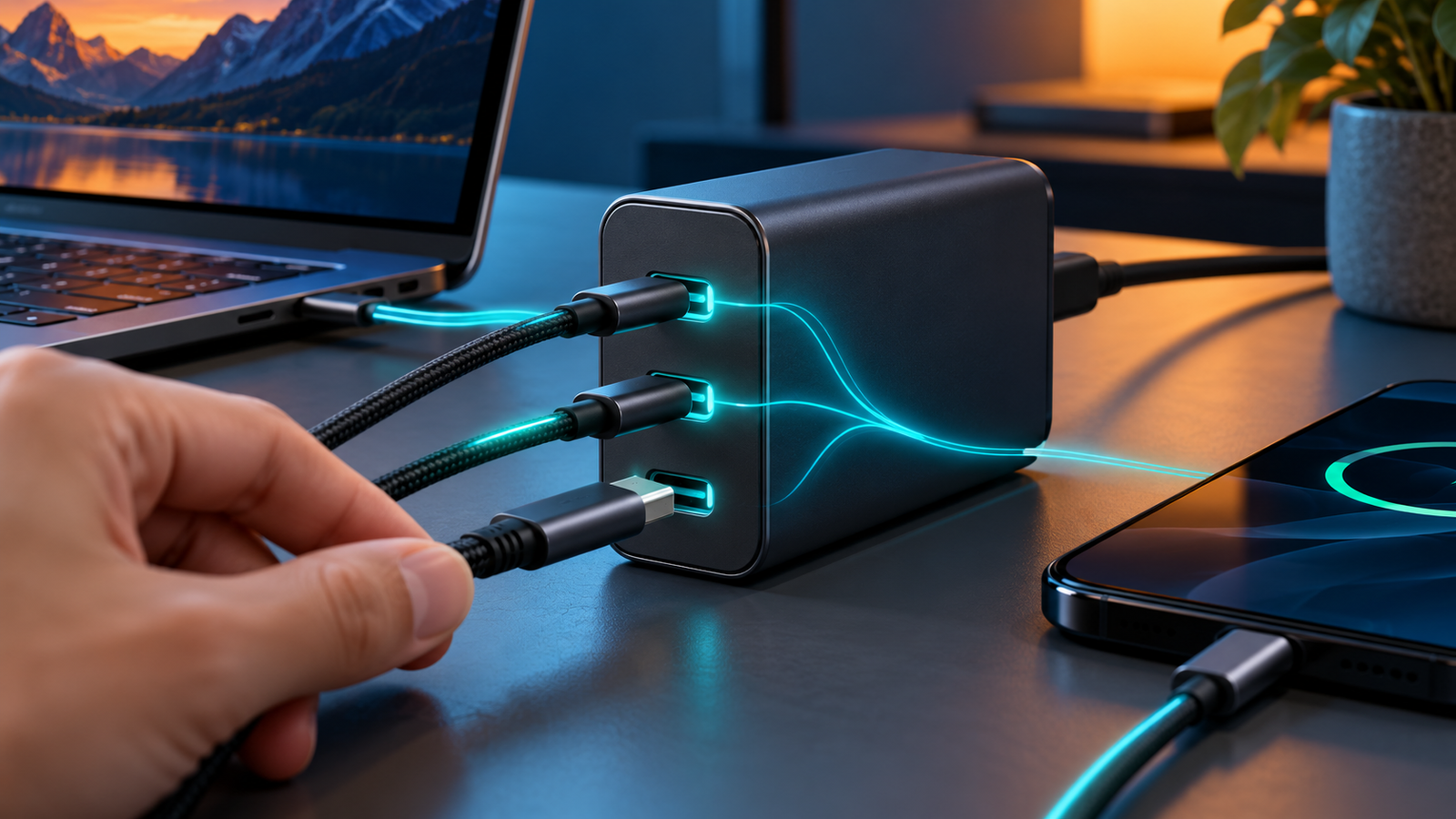
You are charging a laptop from one USB-C socket on a compact wall adapter. You plug your phone into its second socket, and the laptop’s charging symbol disappears, returns, and perhaps makes a notification sound. That can be surprising when nothing appears wrong with the laptop. In many designs, the new connection changes how the charger’s total power is divided. It may pause the first output while negotiating a new combination.
That observation alone does not establish a defect or prove that every multi-port charger behaves identically. The exact behavior depends on its port architecture, firmware, supported USB Power Delivery modes, the connected devices, and the manufacturer’s output table. Anker’s product FAQ for a 100W three-port charger explicitly says charging may stop briefly as power is redistributed when changing port combinations. Nothing similarly describes a brief pause when an adapter reallocates power. Those statements support the general explanation, but they do not define a universal number of seconds or guarantee the behavior of an unrelated model.
This guide separates three outcomes: a one-time pause when a cable is added, slower charging after the new connection, and continuous disconnect/reconnect cycles. They have different causes and different fixes. If your laptop needs reliable uninterrupted input during a presentation or another critical task, a dedicated adapter may be the simpler choice even when a brief reset is normal for the shared charger.
Why does the first device disconnect for a moment?
A charger marked 100W describes its maximum combined output under specified conditions. It normally cannot supply 100W to a laptop and another 100W to a phone at the same time. With one device attached, a high-power USB-C port might make most of that capacity available. When another device appears, the charger may switch to a different supported port combination. The available voltage and current offered to the first device can change as part of that switch.
USB-C Power Delivery uses a conversation between the source and the device to agree on a compatible power mode. In a multi-port adapter, a newly connected device can require the source to revise its allocation and let an existing device establish an appropriate contract again. A charging icon that briefly drops at that instant can reflect the changed supply. Some products distribute power dynamically with little visible interruption; others briefly reset one or more outputs. Do not assume that “GaN” alone tells you whether a charger will pause. GaN describes a power electronics material, while the output-management design determines the port behavior.
Think of the output table as the charger’s real map. It may list one-port, two-port and three-port cases separately, sometimes with different figures for C1+C2 versus C1+A. A nominal 100W adapter could list 100W from C1 alone, then a lower C1 maximum with C2 occupied. The actual values are model-specific. Google publishes just such a distinction for its Pixel Flex Dual Port 67W charger: either port can reach 67W alone, while the maximum on either port is 60W when two devices are connected and the combined ceiling is 67.5W. Those figures are an example from that exact model, not a rule for other chargers.
| What you see | Likely interpretation | First check |
|---|---|---|
| One short pause right when a device is added or removed | Power reallocation and possible PD renegotiation on a model that does this. | Confirm charging resumes and compare the manual’s port table. |
| Charging resumes but laptop is slower | The new port combination offers less laptop-facing output. | Compare the per-port figure with the laptop’s USB-C charging requirement. |
| One device stops and does not resume | Available power may be below its accepted minimum, or compatibility may differ. | Test it alone on the correct port with a suitable cable. |
| Repeated cycles without changing connections | Not explained by a single port-change event. | Isolate the devices, cables, wall outlet and charger. |
What happens during power redistribution?
The charger first detects that the number or type of connected loads has changed. It then applies its built-in distribution plan for that combination of ports. Depending on the model, it may adjust power without a visible pause or momentarily stop one output before offering a new mode. The laptop or phone accepts a compatible mode and displays charging again. The device controls how much power it actually consumes; the maximum printed beside a port is not a constant wattmeter reading.
Do not confuse the charger’s total capacity with a promise to each socket. A port labeled “100W max” may only provide that rating when it is the sole active output. A second port could reduce its ceiling, and the exact split may depend on which sockets are used. Some adapters also have priority rules or special low-current modes. Read the output chart for the exact model and port arrangement. If you need a 65W laptop plus a fast-charging phone, choose a combination that explicitly accommodates those needs, with reasonable headroom and a cable capable of the intended mode.
A cable plugged into an otherwise unused port may matter on some models as well. Apple’s instructions for its 35W dual USB-C adapter advise unplugging any unused charging cable when a device is slow or does not charge. That does not mean every adapter counts an idle cable as a load, but removing it is a quick diagnostic step. When troubleshooting, record precisely what is attached and which physical port is in use; swapping C1 and C2 can change the available output.
Is the brief interruption bad for the laptop or phone?
A manufacturer-documented, momentary pause during a port change does not by itself indicate battery damage. The devices and compatible charger negotiate power instead of simply forcing the charger’s maximum wattage through a connector. A laptop may continue running on its battery for the momentary gap, and a phone may show its charging animation again. The practical annoyance can still matter: notifications, screen wake-ups or a temporary change in a power-dependent accessory can disrupt work.
We cannot infer long-term battery outcomes from a single icon transition. The question to answer is whether the equipment works within its published behavior and whether charging remains stable afterward. If a charger repeatedly oscillates, grows unusually hot, smells abnormal, shows visible damage, or has a loose electrical connection, stop using that setup and follow the manufacturer’s service guidance. A short power redistribution is not a reason to ignore a persistent malfunction.
Equipment that needs uninterrupted external power deserves extra care. A small USB-powered computer, router, streaming stick, or desk lamp may turn off during an output reset because it has no battery to bridge the pause. Brennenstuhl advises using the supplied power source for devices that must remain continuously powered when its USB PD module temporarily interrupts power during redistribution. A battery-backed laptop and a continuously powered device do not experience the same consequence from the same brief event.
Why does the laptop charge slowly afterward?
Once the second device is connected, the first port may have less power available. That can be a designed power split rather than a failure. A laptop that normally receives 65W from a single-port setup might receive a lower maximum in a dual-port configuration. It may show “slow charger,” gain battery more slowly, hold steady, or drain under a heavy workload. Its charging system also changes its own draw with battery level, temperature and workload, so one software reading should not be mistaken for the adapter’s full capability.
Start with the charger’s output combination chart. Then compare the wattage on the laptop’s actual port with the computer maker’s supported USB-C input or original power adapter. Check the cable rating for higher-current modes. An e-marked, appropriately rated cable can remove a cable-side limit, but it cannot increase a charger port’s published dual-port ceiling. See our e-marked USB-C cable guide for the cable side and our multi-port charging speed guide for the broader power-sharing explanation.
Likewise, the charger may have enough total watts but allocate them to the wrong ports for your needs. The label “100W” is less useful than the line in the table for your exact C1+C2 arrangement. A 140W charger is not automatically the answer if its relevant laptop-facing port still falls below the required output in your chosen combination. Check the model, not just the headline wattage.
How to tell normal reallocation from a problem
- Recreate the event once. Charge the first device alone. Add the second device and observe whether there is one brief pause, followed by stable charging. Do not repeatedly unplug and replug rapidly.
- Read the model’s output table. Note the single-port and combined-port figures for the physical sockets you used. A marketing “max” may apply to a different configuration.
- Try each device alone. If a laptop fails even as the only load on a suitable port, the second device is not the sole explanation.
- Swap one cable at a time. Use a known suitable, undamaged USB-C cable for each device. Check for a loose plug or connector. For high-power charging, verify its rated current or wattage.
- Remove idle cables and accessories. Some designs react to the presence of another connection. Simplify the setup before diagnosing a fault.
- Change the port pairing. If the manual offers a higher laptop allocation on C1+C2 than C2+A, use the specified combination. Do not assume every USB-C socket is identical.
- Compare wall power. Use a properly seated outlet and eliminate a questionable power strip or plug adapter from the test. Do not use damaged electrical hardware.
- Observe whether the issue repeats. A single reset when a cable changes is different from cycling every few seconds with no intervention. Record which combinations trigger it.
- Check the device’s requirements. A laptop may need more power than the shared configuration offers. Another device may have protocol compatibility limits. Consult both manufacturers’ guidance.
- Contact support with exact details. Provide the charger model, port combination, device models, cable ratings, and whether charging resumes. This is more actionable than reporting “100W charger not working.”
If the problem follows one cable across ports, replace the cable with a suitable one. If it follows one device only, inspect that device’s USB-C charging specification and charging port. If every device repeatedly disconnects on the same charger while a known-good adapter remains stable, contact the charger maker. These are diagnostic inferences, not proof that a specific component is defective without hands-on testing.
What if one device never starts charging again?
First remove the newly connected device. If the original starts charging normally alone, the available shared output may be inadequate for it, or the combination may expose a compatibility issue. Nothing’s guidance says that when its 100W single-port adapter redistributes power across ports, some high-power devices may no longer continue charging; it recommends using a single port for such a load. Google’s Pixel Flex support also notes on-off behavior with certain devices that are not USB-PD compliant in dual-device use. Neither example proves that your equipment has the same cause, but both show why the exact model and device matter.
Check whether the second device is truly an ordinary phone or a larger load such as a power bank, tablet or laptop. A charger rated for 100W total can be overcommitted by two computers. Conversely, tiny accessories may have a different low-current mode on some models. Do not infer compatibility solely because the plugs fit. Try the maker’s recommended port, cable and device arrangement. A separate adapter is sensible when a machine must receive its full original power rating.
| Setup | What to verify | Practical choice |
|---|---|---|
| Laptop and phone | Laptop-facing watts in the exact two-port configuration. | Use the highest-power port for the laptop; allow the phone the other port if the chart supports both. |
| Two laptops | Whether both laptops accept the stated shared outputs. | Use separate adapters if either requires more than its allocated share. |
| Phone and small accessory | Low-current behavior and device compatibility. | Follow the charger’s special low-power mode guidance if provided. |
| Always-on USB device | Whether a momentary output reset would reboot it. | Use a dedicated, uninterrupted supply appropriate to that device. |
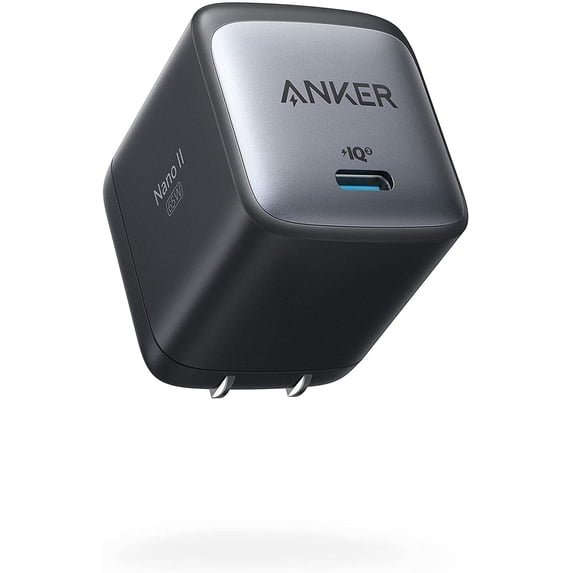
Anker 100W 3-Port Charger with Smart Display
Anker’s product FAQ explicitly addresses why charging may stop briefly when a new device is connected: during changes between port combinations, the charger redistributes power across its outputs. This makes it a useful example of manufacturer-documented behavior. Its exact per-port power table, model identifier and regional version should be checked before buying; the behavior and ratings cannot be copied to every Anker or 100W adapter.
See Anker’s model and FAQ →Editorial example linked to the manufacturer. This link is not an affiliate link. We did not independently test this charger for this article; product specifications can change.
Can you prevent the charging pause?
Sometimes, but not always while using the same shared adapter. The simplest method is to connect your devices before starting work and avoid changing the port load during a critical session. If your laptop needs steady power, use a dedicated charger and let a second adapter handle the phone. If a manual identifies a preferred port order or pairing, use it; do not assume that changing ports will eliminate a reset on every model.
A charger advertised with dynamic or uninterrupted power allocation may reduce the interruption for certain combinations, but confirm the actual manufacturer’s wording and any exceptions. DJI, for example, says its Power 140W GaN charger keeps existing devices connected in most usage scenarios, while a brief disconnection may still occur for devices using dynamic voltage protocols such as PPS when the charger re-initiates a handshake. That is a carefully qualified model-specific claim, not a universal promise that any charger can never pause.
Buy for the devices you actually connect at the same time. Write down their power needs, find the output matrix for the chosen charger, and select a port pairing that meets the important device’s requirement. Our multi-port charger selection guide covers this buying process. If a hub sits between the adapter and laptop, add its own input and host-output limits to your check; our 100W hub and 85W laptop guide shows why a hub’s input label can differ from its laptop-facing output.
Frequently asked questions
Is it normal for a charger to stop briefly when I connect a second device?
On some multi-port models, yes. Makers including Anker and Nothing document a brief pause when power is reallocated after a port change. Check the guidance for your exact charger and confirm charging resumes. A persistent loop needs troubleshooting.
Does a 100W multi-port charger supply 100W to each device?
Usually the headline wattage refers to a maximum total or a particular single-port mode. Read the combination table for the exact sockets in use. Do not add maximum figures from separate single-port modes as if they can all happen at once.
Why does my laptop show “slow charger” after I connect a phone?
The charger’s new port allocation may give the laptop less power than it received alone. Compare the laptop’s supported charging input with the charger chart and cable rating. The laptop’s workload and battery state also affect what you observe.
Can a USB-C cable cause repeated disconnects?
A damaged, loose or inadequately rated cable can be a factor. Test with a known suitable cable and change one part at a time. Repeated on-off cycles without changing devices should not simply be dismissed as a normal one-time reallocation.
Will a GaN charger avoid all charging pauses?
No. GaN is a component technology and does not guarantee uninterrupted port switching. Check the model’s documented allocation behavior and any stated exceptions.
Can I run a router or other always-on device from a multi-port charger?
Only if its power needs and connector match and the output remains suitable. A port-change reset could reboot an unbuffered device. A dedicated supply is often preferable when continuous power is essential.
Does a brief pause mean my battery is damaged?
A single manufacturer-documented pause does not establish battery damage. Confirm stable charging resumes. Stop using a setup with abnormal heat, damaged connectors or persistent cycling and seek manufacturer guidance.
The practical answer
A multi-port charger may momentarily stop an existing output when another device is connected because its shared power budget and USB-C negotiation change. If charging resumes and remains stable, that can be the model’s intended behavior. If it stays off or cycles repeatedly, check the port matrix, device requirements and cables one by one. For a laptop or always-on device that needs steady full power, a dedicated supply can remove the shared-port complication.
Sources: Anker 100W 3-Port charger FAQ; Nothing support on reallocation; Google Pixel Flex power distribution; DJI charger FAQ; Brennenstuhl service; Apple dual-port adapter guidance. Model examples are not independent tests or universal specifications.



5 Comments